|
Note: This article contains information about the UltiMaker 2.85 mm TPU 95A material. Similar quality cannot be guaranteed with third-party filaments. This material can be used on the UltiMaker 2+, 3, S Series, and Factor Series, but is not compatible with the Method, Sketch, or Replicator.
UltiMaker TPU 95A (thermoplastic polyurethane) is a semi-flexible material that can be used in a wide variety of engineering applications where performance is more important than aesthetic qualities. Although most flexible filaments are usually difficult to print, UltiMaker TPU 95A is optimized for easier and faster printing without negatively affecting layer bonding.
Tip: Dry UltiMaker TPU 95A before printing. The filament can be dried following the recommendations described in this article. Additionally, make sure print cores are cleaned using a hot and cold pull.
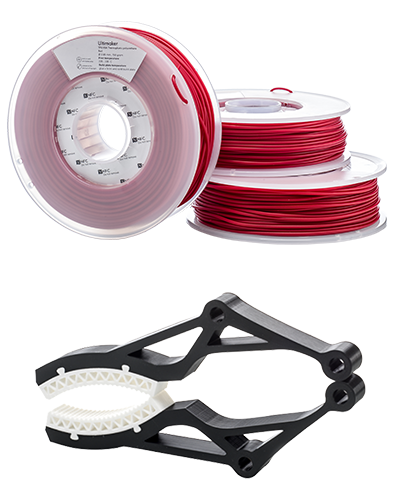
UltiMaker TPU 95A is available in the following colors:
|  |
In this article:
- Compatibility: Information about printer, print core, and dual material compatibility
- Printing recommendations: Overview of the advised temperatures, adhesion, and environment
- Maintenance and troubleshooting: Advice for printer maintenance and material storage
- Health and safety: Important information about printing safely with UltiMaker TPU 95A
|
Related articles for UltiMaker TPU 95A:
|
Compatibility
UltiMaker TPU 95A can be used on Factor Series, S Series, UltiMaker 3, and UltiMaker 2+ (Connect), but is not compatible with all nozzle sizes. On UltiMaker 3D printers that use print cores, you print TPU 95A with the AA or AA+ variant.
| Printer | Compatible print cores / nozzles |
|---|
| UltiMaker Factor 4+ | AA+ 0.4, AA 0.4 (experimental), AA 0.8 (experimental) |
| UltiMaker Factor 4 | AA 0.4, AA 0.8 |
| UltiMaker S6 and S8 | AA+ 0.4, AA 0.4 (experimental), AA 0.8 (experimental) |
| UltiMaker S3, S5, and S7 | AA 0.4, AA 0.8 |
| UltiMaker 3 series | AA 0.4, AA 0.8 |
| UltiMaker 2+ Connect | 0.25, 0.4, 0.6 |
| UltiMaker 2+ series | 0.25, 0.4, 0.6 |
Printer and print core compatibility notes
- UltiMaker TPU 95A has optimized settings for the Pro Bundle, Air Manager, and Material Station. This ensures a good end-of-filament and end-of-print experience in the Material Station and an optimal build environment with the Air Manager. Please make sure to use the latest version of UltiMaker Cura and keep the printer's firmware up to date.
- For the high-speed printers running the Cheetah motion planner (UltiMaker S6, S8, and Factor 4+), the AA+ 0.4 print core is preferred; profiles for the standard AA print cores are experimental.
- Although it is possible to prepare TPU 95A prints for UltiMaker 2 series and Original series, UltiMaker TPU 95A has not been fully validated in combination with these older-generation printers. You may use this material experimentally.
Dual material combinations
Because TPU 95A is prone to oozing, it is not officially supported in combination with other materials. However, several experimental combinations are possible on dual-extrusion UltiMaker printers, for both support materials and other build materials.
|
Support materials:
- PVA (experimental)
- Breakaway (experimental)
- Tough PLA (experimental)
- PLA (experimental)
- Self-support (TPU 95A)
|
Dual combinations:
- TPU 95A (dual color)
- PLA (experimental)
- Tough PLA (experimental)
- PETG (experimental)
- ABS (experimental)
- Nylon (experimental)
- PC (experimental)
- PET CF (experimental)
- Nylon CF Slide (experimental)
|
Note that all possible combinations are listed as experimental, because any combination with TPU 95A may result and stringing and blobs on the surface of the print. Results are dependent on the model type that is used.
Tip: Improve your dual extrusion results with TPU 95A by using the interlocking feature in UltiMaker Cura. This improves the bonding between otherwise incompatible materials.
Printing recommendations
UltiMaker TPU 95A is an advanced material. Engineering materials offer advanced properties but may require more printing experience to achieve consistent results, even when using default settings.
Tip: Always use the latest version of UltiMaker Cura and make sure that your 3D printer is updated with the latest firmware version to include the correct material profile for UltiMaker TPU 95A.
Cura profiles
UltiMaker TPU 95A does not support intent profiles. However, several profiles for different layer heights are available in UltiMaker Cura, ranging from 0.1 mm layers to 0.4 mm. The availability of profiles depends on the selected printer and print core.
Tip: TPU 95A is prone to oozing. Therefore, design and position your parts to minimize travel moves. For printing multiple objects, the Print Sequence = One at a Time mode is recommended. You can find this in Cura under Special Modes in the Custom settings.
Temperatures
For printing TPU 95A, a nozzle temperature of 220–235 °C is recommended. Furthermore, the TPU 95A profiles are optimized to print on a cold build plate on S series printers, the UltiMaker 2+ Connect, and the Ultimaker 3. Factor Series printers use a moderate build plate temperature of 40 °C, and for the Ultimaker 2+, a build plate temperature of 70 °C is used in the profile. The temperatures are automatically set correctly based on the printer, nozzle size, and profile you select in UltiMaker Cura.
Tip: Objects with a high amount of retractions print more reliably when the print temperature is raised by 2 °C.
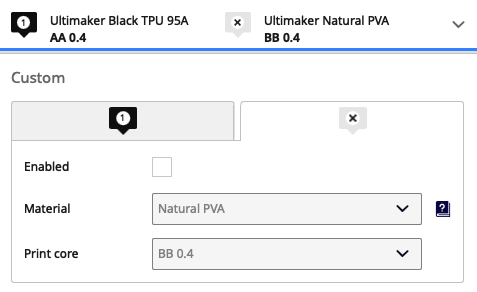
Note that Cura will always use the highest build plate temperature of the two extruders. When combining TPU 95A with another material, that material's build plate temperature will be used. For a single-material TPU print, please ensure you disable the unused extruder in Cura. This prevents any settings from the second material from overriding the TPU 95A profile. To disable an unused extruder, open the Configuration panel in UltiMaker Cura and uncheck the Enabled box.
Adhesion
In most instances, extra adhesion is not necessary for a successful print, but it is always advised to apply a thin layer of UHU glue to the glass plate for the best adhesion. No glue is required to print on the flexible build plate of the Factor and S Series printers.
To improve adhesion when printing more complex prints with UltiMaker TPU 95A, it is recommended to apply a thin layer of Magigoo Flex to the glass plate.
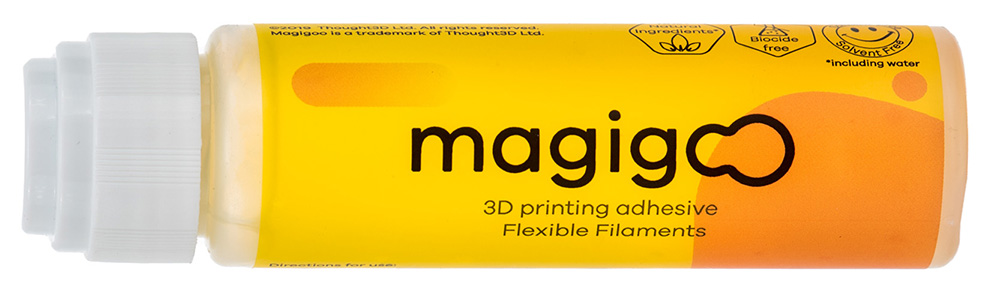
Caution: The addition of glue is recommended to improve adhesion and thereby prevent the chance of print failure and printer damage on the glass plate. Additionally, the use of glue can prevent over-adhesion, which could otherwise lead to damage to the build plate. Prints using Magigoo Flex as the adhesive may be difficult to remove. It is then recommended to place the glass plate in water and thereby dissolve the adhesive. More information can be found here.
Note: Do not use the adhesion sheets for UltiMaker TPU 95A. The adhesion is so strong that the sheet will tear after the removal of the first 3D print.
A brim is the default build plate adhesion type in the UltiMaker TPU 95A print profiles in UltiMaker Cura. A brim consists of extra lines printed around the perimeter of the initial layers of your model. This ensures reliable adhesion to the build plate.
After printing, it is usually quite easy to remove the print from the build plate. For print jobs where the build plate was heated, let the plate cool down before removing it from the printer and removing the print. For the flexible build plate, depending on the size and shape of the object, flexing the plate may not cause the print to release. In that case, use a tool such as a (plastic) scraper and insert it under the brim or a corner of the printed part to help detach it.
Print environment
UltiMaker TPU 95A is not prone to warping or delamination, and prints reliably without additional accessories. However, on printers with an open front, you can try the front enclosure included in the Advanced 3D Printing Kit (for the Ultimaker 2+ or Ultimaker 3) or the UltiMaker 2+ Connect Air Manager to obtain more consistent and reliable results. On Factor and S Series printers, ensure to keep the door(s) closed during printing.
Furthermore, a relative humidity of below 50% is recommended when printing TPU 95A to prevent moisture uptake and limit oozing during printing. When the filament is exposed to moisture, TPU should be dried at 70 °C for 10–20 hours, depending on the moisture level.
Maintenance and troubleshooting
UltiMaker TPU 95A is considered one of the trickiest UltiMaker materials. Due to its flexibility, it is not ideal for the Bowden extruder setup used on most UltiMaker 3D printers (except Factor Series). TPU offers unique properties and can be printed reliably, but thorough maintenance and optimum printing conditions are key.
Maintenance
For the best results with UltiMaker TPU 95A (as with any material), apply general maintenance to your UltiMaker printer(s). Find the recommended preventive maintenance schedule for your printer type here:
Because TPU is a flexible material, it is more difficult to push through the Bowden tubes than rigid filaments. It is easily influenced by friction. If the TPU material encounters too much friction between the feeder and the print head, this may cause the filament to buckle in the tube. Therefore, it is especially important to keep the insides of the Bowden tubes clean and free of material particles. Additionally, ensuring that the print cores are clean before starting a new print will also help reduce resistance.
Drying the material
When the filament is subjected to moisture, the filament should be dried at 70 °C for 10–20 hours, depending on the moisture level. If the material has absorbed moisture, you will notice this in the print quality; TPU can show excessive oozing or stringing, give the prints a 'hairy' appearance, and may cause nozzle clogs and under-extrusion. Always ensure to properly store the spools when not in use. Place the spool in a resealable bag, in a cool and dry place, and out of direct sunlight.
Note: It is strongly advised to dry UltiMaker TPU 95A after unboxing and before printing. A freshly opened spool may still contain somewhat elevated moisture levels. The material gives much more consistent and reliable results after drying.
Setting optimization
The default Cura profiles will work well for most prints. However, depending on the model (size and shape) and the desired print properties, some settings can be changed for better results. For most of these settings, open the Custom view in UltiMaker Cura.
- Printing temperature: Objects with a high amount of retractions print more reliably when the print temperature is raised by 2 °C.
- Print speed: Slowing the print speed can help reduce under-extrusion.
- Print sequence: Limiting travel moves helps reduce stringing and oozing. When printing multiple objects on the build plate, it is recommended to print one model at a time instead of all at once. This is found under Special Modes.
Note: Setting the Print Sequence to One at a Time reduces the height of the build volume to prevent the print head shafts from colliding with printed parts. This mode is only possible for prints with a Z height that is smaller than the gantry height (distance between the nozzle tip and the bottom print head shaft), and if only one extruder is enabled.
Loading tips
For a reliable loading process, especially when using the Material Station, ensure the filament has a clean, pointy tip. Use cutting pliers or wire cutters to remove any bent or damaged sections from the end of the spool, then cut the filament at an angle. A double cut will create a sharp tip that feeds smoothly and reduces friction. On the S series Material Station, select the shortest, straightest path for reduced friction while the material is pushed to the feeders. For extruder 1, use material bay A, then B, etc. For extruder 2, use bay F, then E, etc.
PTFE Bowden tube
Despite following all the tips and best practices in this article, some users have experienced persistent reliability issues with UltiMaker TPU 95A, particularly on S series printers. The reported problems include filament buckling and extrusion errors (ER65 or Material appears to be empty). To improve reliability, UltiMaker has introduced a dedicated Bowden tube designed specifically for TPU 95A. The TPU Bowden tube is made of PTFE, which has a lower friction coefficient than the standard PFA tube. This helps the filament move more smoothly through the extrusion system and reduces the chance of extrusion errors. Learn more here: PTFE Bowden tube for UltiMaker TPU 95A
Note: This Bowden tube shows positive results with TPU 95A, but its use has not been fully verified with other materials. It is recommended to reinstall the regular Bowden tube when switching to another material.
Health and safety
UltiMaker TPU 95A is safe to print when using the recommended temperature settings listed above. To ensure a comfortable and healthy working environment, we recommend 3D printing in a well-ventilated area.
Tip: For more information, download the safety data sheet for UltiMaker TPU 95A here.
Caution: Although most TPU 95A profiles use a cold or moderate temperature build plate, the nozzle reaches temperatures of over 200 °C. Never reach inside the printer while it is in operation, and never touch heated components.


