UltiMaker print cores are used in the UltiMaker 3 series, S series, and Factor 4. If you are experiencing problems with your print core(s), check the tips on this page. This contains instructions on how to resolve the most common print core issues.
Clogged print core
If material does not flow consistently, the print core could be clogged with degraded material. In this case, the print core should be cleaned by performing the hot and cold pull method. The printers contain an assisted procedure in the menu (under the 'gear' icon on S series and Factor 4, and under System on the UltiMaker 3). Follow the instructions on the display, or visit the page below for more information:
How to perform a hot and cold pull
Using the UltiMaker cleaning filament is recommended for hot and cold pulls as it is the most effective material. If you don’t have the UltiMaker cleaning filament at your disposal, you can use PLA.
Print core not recognized
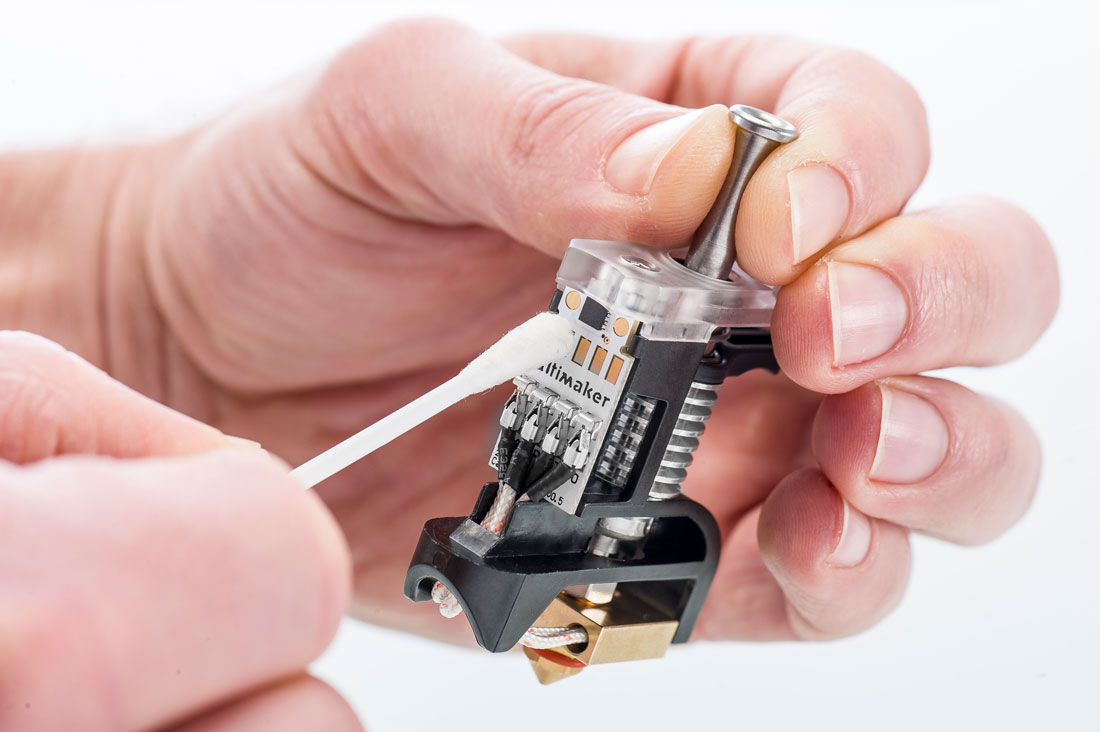
If a print core is not recognized by the UltiMaker printer, the display will inform you about this. The most common reason for this is dirty contact points on the PCB at the back of the print core. Clean the contact points with a cotton swab and some alcohol (IPA).
Note: When handling print cores, never touch the contact points at the back of the print core with your fingers.
Tip: If the issue is not resolved after cleaning, or when a new print core is not recognized by the printer out of the box, please contact support for further assistance.
Print core error messages
If an electrical problem is detected with a print core, the printer will stop all processes and show an error message on the display. This is for safety reasons, because interruptions in the communication or temperature control could otherwise lead to dangerous situations.
There are several errors specifically related to print core communication. Go to the link with the error code as shown on the display of your printer, or check the table below:
Often, 'Min' or 'Max' temp errors are caused by an interrupted connection. Make sure that the print cores are properly inserted. Never remove the print core while it is active. Heater errors are commonly caused by cold airflow. Ensure the nozzle cover is properly installed and in good shape.
Tip: For specific information about each error code and how to resolve it, click the links in the table above.
Print core not compatible
If the printer gives you an incompatibility warning, the print core cannot be used with the loaded material. Change the print core and/or the material to a supported configuration.
For an overview of which materials are compatible with which print cores, check the page below:
Material and print core compatibility
Note that the UltiMaker 3 and UltiMaker 3 Extended are only compatible with the AA and BB print cores (learn more here: UltiMaker 3 compatibility). The HT print core is only compatible with Factor 4. For a complete overview, see the page below:
Print core and printer compatibility
Print core nozzle worn
If the nozzle of the print core is damaged, flattened, or worn down, this will cause print quality issues and will likely also lead to errors during the active leveling process.
The nozzles of the UltiMaker print cores are quite durable. If the tip of the nozzle is flattened, this is probably because the print core was used with an incompatible material. The AA and BB print cores are not intended for use with composite or abrasive materials.
If the nozzle is damaged, replace the print core. It is not possible to replace only the nozzle. Learn more here:
Can you change the nozzle on print cores?
Print core LED not working
In some cases on S series printers, the LED lights of the print cores may not work or not work as expected. This was a bug in firmware version 8.1 and has been resolved in firmware 8.2 and later versions.
Tip: Learn more about the different colors of the print core LEDs in this article.
If you notice strange behavior of the print core LEDs, please check if your printer is still running 8.1. If so, update the firmware. Replacing hardware such as the print core, print head, or PCB will not help to resolve the LED behavior. When the problem with the LEDs is not related to firmware 8.1, please contact support for further assistance.


