For Factor 4 and S series printers, UltiMaker offers two firmware channels: Stable and Latest. You can choose to subscribe to your preferred channel. When your printer is connected to the network, you will only be prompted to update the firmware when there is a new release available on your subscribed channel.
Latest channel
|
Stable channel
|
|
The Latest channel is selected by default. This channel contains the most recent firmware, including new features, improvements, and bug fixes. All firmware releases are thoroughly tested internally by our engineers.
|
The Stable channel has a slower release cadence. All features and improvements included in Stable releases will be thoroughly tested, not only by UltiMaker but also field-tested on the Latest channel.
Updates will also be pushed to the Stable channel if they include important safety or reliability improvements.
|
Note: There are two different branches of S series firmware, for the 'Standard' series (S3, S5, and S7) and for the 'High Speed' series (S6 and S8). These are different files, and updates for both series may or may not be released at the same time. New updates may only include improvements for certain models, and it is possible that there is no added value for your printer type for certain releases. When relevant, the firmware will also contain updates for the S series peripherals (Air Manager and Material Station). Please check the release notes for more information: 'Standard' S series and 'High Speed' S series.
Which channel should you choose?
It is generally recommended to install all the Latest updates. The Latest channel is selected by default. This ensures that your printer is always equipped with the newest features, improvements, and bug fixes. However, if your workflow requires fewer updates and less frequent changes, change your subscription to the Stable channel. This ensures more stability, but you will receive improvements and non-critical bug fixes much later.
Note: It is always possible that, despite our extensive testing procedures, new firmware on the Latest channel includes bugs or causes unexpected printer behavior. Known issues will be listed on the firmware release notes pages. Consider switching to Stable if the issues persist. If you are experiencing unknown problems, please notify UltiMaker support.
How to configure the firmware channel
By default, the Latest channel is selected. If you want to change this to Stable, or later revert back from Stable to Latest, you can easily do this either via the touchscreen menu on the printer or via the Digital Factory.
Touchscreen menu
- In the Options menu (gear icon), select Maintenance.
- Select Firmware subscription channel.
- Change to your preferred update channel and exit the menu.
Digital Factory
Tip: If your printers are not yet connected to the UltiMaker Digital Factory, learn how to do so on this page.
In the Digital Factory, go to the Printers tab and click on the printer for which you want to change the subscription channel.
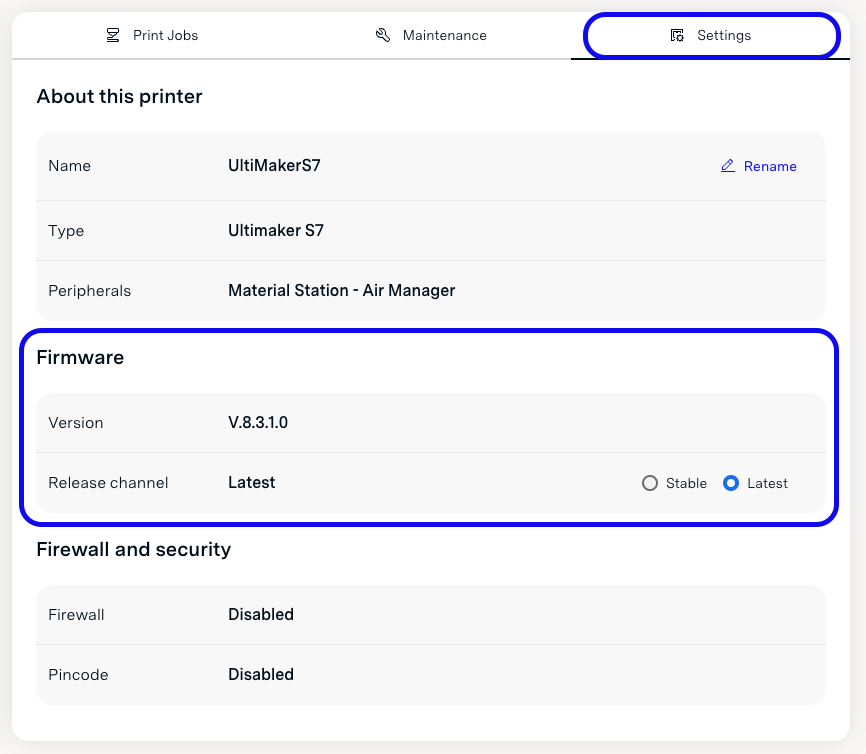
In the Settings panel on the right, you can see the currently installed firmware version and the release channel. Click the circle next to Stable or Latest if you want to change the channel. This may take a moment to update.
How to install the most recent firmware on the new channel
After changing the firmware subscription channel, you may need to update the firmware to ensure you are running the most recent version on that channel.
If your printer is connected to the network, you will see a prompt on the display to update the firmware after changing the channel. Note that it is possible that you may be asked to install an older firmware version when switching from Latest to Stable.
If the printer is not connected to the network, updating the firmware is always a manual process anyway, so the subscription channel is not relevant. Download your preferred version from the firmware update pages:


