Periodically, new versions of the Factor series firmware are released. Keep the firmware up to date to ensure your Factor Series printer is equipped with the latest features. Updating the firmware can be done over the network or via USB.
Note: The Factor 4 and Factor 4 Plus look similar, but they use completely different firmware architectures. Firmware versions are strictly incompatible between the two models, even though they have the same version number.
There are two firmware subscription channels for Factor Series: Latest and Stable. On the Latest channel, you will receive the most recent updates right after internal testing and release. Features will be released on the Stable channel after field testing, or when they affect the safety or reliability of the machine. Learn more about firmware channels here.
The most recent firmware releases for Factor Series, for both models and both channels, are:
Update via the network
Connect the printer to the network via Wi-Fi or Ethernet in the Options (gear icon) → Network menu. If the printer is already connected to the network, it will show a prompt whenever a new firmware version becomes available. If you choose to postpone the update until later, take the following steps when you are ready to install the new firmware:
- Go to the Printer tasks, or navigate to Options (gear icon) → Maintenance → Update firmware.
- Select the new firmware version.
- Press Install to start updating the firmware.
- Wait for the UltiMaker Factor 4 to finish updating the firmware. The printer will restart.
Note: Never power off the printer while the firmware update is in progress.
Update via USB
If the UltiMaker Factor Series printer is not connected to a network, you can update the firmware via USB.
Note: Without an internet connection, there will be no notifications on the printer, so make sure to regularly check for updates on this page.
Take the following steps to update the firmware manually using a USB drive:
- Download the firmware for your printer model and your preferred channel from the table above.
Note: Ensure you select the correct printer type. Do not attempt to install Factor 4 Plus firmware on a Factor 4 printer, or vice versa. This will not work.
- Place the firmware file (.swu) in the root directory of a USB stick.
- Insert the USB stick into the USB port of your printer.
- Open the Options menu (gear icon), go to Maintenance → Update firmware, and select the new firmware in the update menu.
- Wait for the UltiMaker Factor Series printer to finish updating the firmware. The printer will restart.
Note: Never remove the USB stick and never power off the printer during the installation.
Pre-launch firmware (Factor 4 only)
Note: The information in this section only applies to the very first production models of the Factor 4. These were manufactured and shipped before the release of the first public firmware version.
To ensure you have the best first-run experience with your new 3D printer, the firmware must first be updated to the latest version. If you are one of the first UltiMaker Factor 4 owners, you will see the screen below when you turn on the machine for the first time. The link directs you to this page.
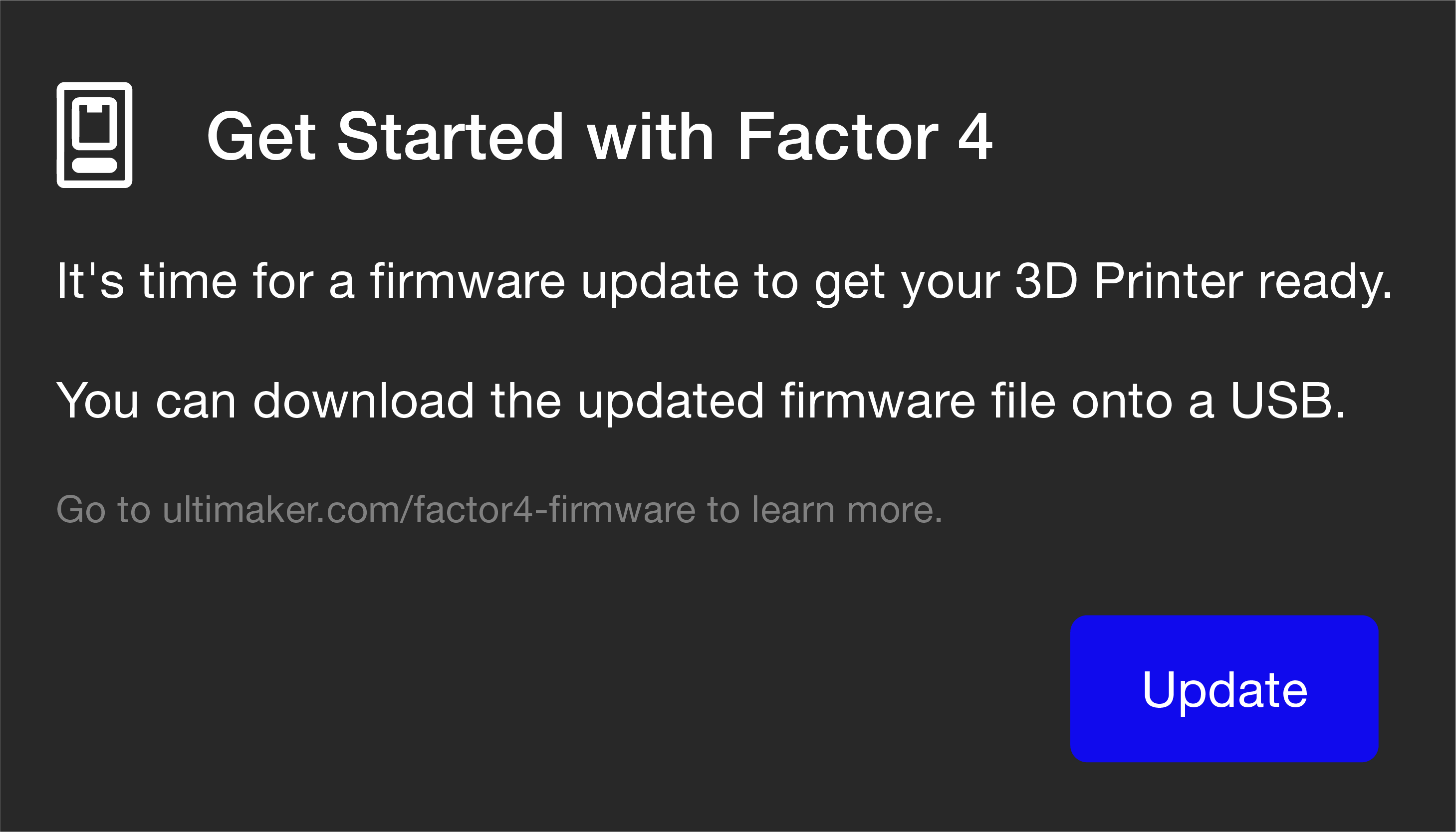
Before you can get started with the guided welcome setup, update the printer's firmware via USB. You will need a USB drive (32 GB max.) and the firmware file (.swu). Take the following steps to update:
- Download the firmware file via one of the links shown above.
- Place the firmware file (.swu) in the root directory of a USB drive.
- Insert the USB stick into the USB port of your printer.
- On the UltiMaker Factor 4 display (see the screen above), select Update.
- In the next screen, select the firmware file to begin the update process.
- Wait for the UltiMaker Factor 4 to finish updating the firmware. The printer will restart.
Note: Never remove the USB stick and never power off the printer during the installation.
After installing the supported firmware, the printer will guide you through the welcome setup, and you can then start your first print. Future firmware updates can be installed via the normal processes (either via the network or via USB) as described above.


