UltiMaker Cura contains a wide range of preset print profiles for UltiMaker materials and print core or nozzle combinations. Using these profiles allows quick and simple slicing for a variety of applications. In order to use these default profiles, it is important to have selected a supported configuration. When there is no compatible profile for the configuration you selected, UltiMaker Cura shows an exclamation mark in the Material menu and a Configuration not supported message in the Print settings menu.

Third-party profiles
Print profiles are only developed and tested by UltiMaker for UltiMaker materials and UltiMaker 3D printers. If you want to print with other materials, you can download compatible material profiles for your UltiMaker printer from the Marketplace. These materials also have tested profiles and compatibility rules.
When creating custom material profiles yourself, ensure to follow the steps outlined in this article. When doing so, you will benefit from the predetermined printer, print core, and dual-material compatibilities for that material. However, different material types and brands may have different properties, so always test your profiles well. UltiMaker cannot support print quality issues with third-party materials and custom profiles.
Print profiles for third-party printer brands in UltiMaker Cura are not developed, added, or tested by UltiMaker. We cannot offer any support for these configurations. Please contact your printer manufacturer if you are experiencing print quality problems.
Troubleshooting
There can be a few reasons why a profile is not supported. To obtain a supported profile, it is important to check the following factors:
|
1. Material and print core combination
The print core types are optimized for different materials. Also, not all materials can be printed with all nozzle sizes.
2. Material combination (dual extrusion)
Not all material types work well together. For single extrusion, disable the inactive extruder.
3. Print core combination
Ensure that there are available overlapping profiles for the chosen print cores in dual-extrusion prints.
4. How to print guides
The How to print guides contain overviews of the supported print cores / nozzles and dual-material combinations.
|
|
1. Material and print core combination
UltiMaker print cores are available in different types. The print core types are optimized for different materials. Generally, the AA print cores are intended for build materials, BB print cores for PVA, and CC print cores for composite materials. Check that the material, print core, and printer type combination is supported (for both extruders).
Please see the pages linked below for more information about print core compatibility:
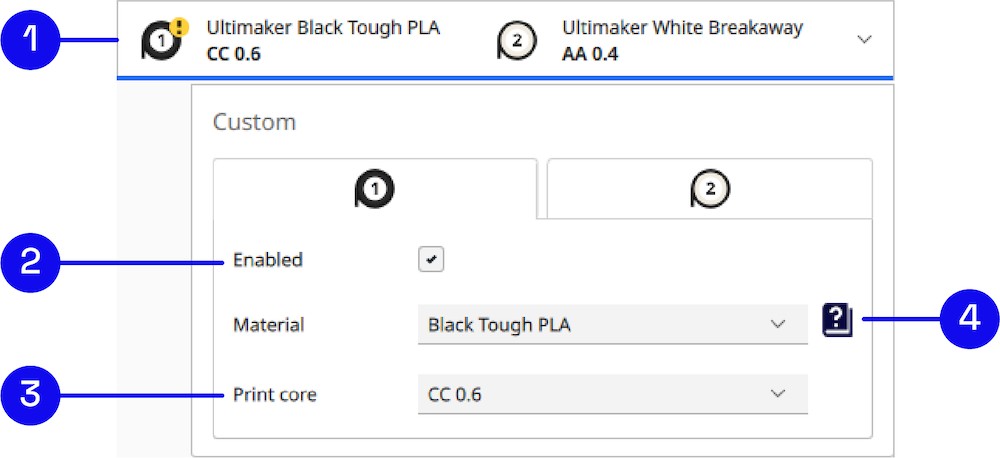
Tip: If an unsupported material and print core combination is chosen, this is shown at the top of the Configuration panel with an icon. A yellow exclamation mark indicates a non-recommended combination, while a red cross means that this configuration may not be used (this will prevent you from slicing).
2. Material combination (dual extrusion)
By default, all profiles on the UltiMaker 3, S, and Factor Series printers are shown as dual extrusion and therefore a combination of two material profiles. Always ensure that the two selected materials can be combined. Some materials do not work well together and the chance of failure is very high. Please see this page for an overview of dual-material combinations.
When you want to make a single extrusion print, it is recommended to disable the unused extruder. Select either Extruder 1 or Extruder 2 in the Configuration panel, and click the Enabled checkbox to disable this extruder. This is important, because sometimes the print settings are taken from the second extruder, while this is not intended. To list some examples:
- Build plate temperature. The highest build plate temperature of both extruders is chosen.
- Initial layer height. The highest initial layer height of both extruders is chosen.
- Selection of layer heights. Only mutual layer heights, i.e. layer heights that both materials have a supported profile for, can be chosen. This is also important when using dual extrusion with two different print core sizes. Find more information about this below in section 3.
Tip: When you slice a single-extrusion print with both extruders still enabled, Cura will detect this and prompt you to disable the unused extruder. This prevents any of the problems listed above.
3. Print core combination
For dual extrusion prints, it is important that there are available overlapping profiles for the chosen print cores. When using two print cores with the same nozzle size (for example, 0.4 mm), this is not an issue. However, if two different nozzle sizes are used, both print cores must have profiles for the same layer height.
The AA 0.25 mm print core is only compatible with another AA 0.25 mm print core, or with the AA 0.4 print core when using 0.1 mm layer heights. Other print core sizes (0.4, 0.6, and 0.8 mm) have more overlap options. See the image below for an overview of compatible layer heights when combining different print core sizes:
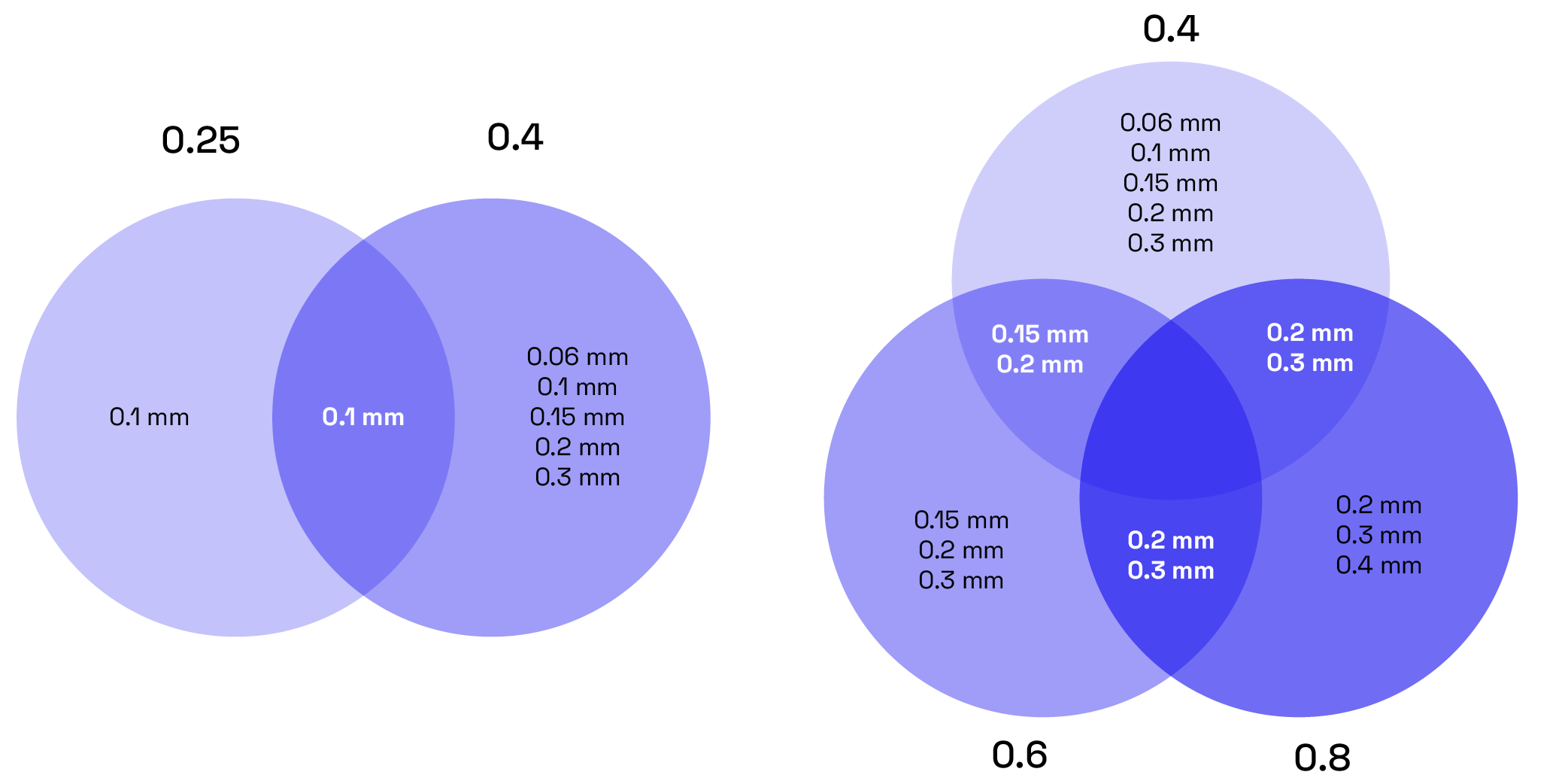
Note: This is a general overview. Not all profiles may be available for all printer or print core types. For example, the CC 0.4 and AA+ 0.4 print cores only offer 0.15 mm and 0.2 mm profiles, while the CC+ 0.6 and HT 0.6 only have 0.2 mm profiles.
4. How to print guides
If you want to learn more about the material you have selected, click on the book with the question mark icon. This will direct you to the How to print guide for that material. Here, you can check information about print core and dual-material compatibility, as well as useful tips for printing.
If you are unsure why you don't see a default profile for your selected configuration, in the How to print guide you can see why such a profile has not been developed. This could be because of chemical incompatibility or due to quality problems with a certain nozzle size.
Tip: The book icon will take you directly to the relevant guide for the selected material. You can find all How to print guides in the Materials section of this knowledgebase, or in this overview.
Need further support?
If you still have questions about material profile compatibility after reading this article, please contact support. Share your UltiMaker Cura project file so our support agents can see your configuration setup and efficiently offer assistance.


