We recommend saving your projects directly after sending your print jobs to your 3D printer. This way, you ensure that your saved project contains the same information as your print job sent to the printer, including the printer configuration, model adjustments, and print profile.
Note: UltiMaker Cura offers two types of projects: the complete project file and Universal Cura Projects (added since 5.7.0). If Support asks for a project for troubleshooting, always save the complete project (as described in this article), not the Universal Cura Project.
Save to disk
After you have sliced your model, go to File, then Save Project to save the project file. This will create a .3mf file on your computer in the folder that you specify.
Tip: Use the shortcut keys Ctrl+S on Windows or ⌘+S on Mac to quickly save your project.
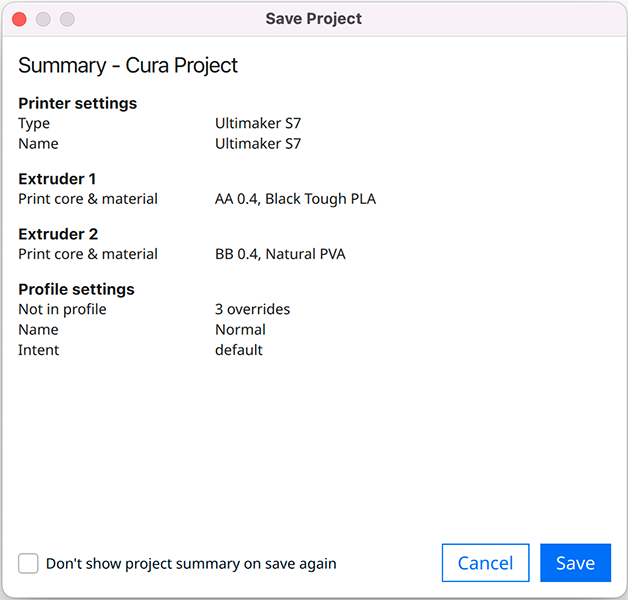
Cura will show you an overview of the project file, including information about the printer, extruder(s), and profile. This summary is also displayed when opening an UltiMaker Cura project file, informing you of its contents before opening it.
If you do not wish to see the Cura project summary every time you save a project, check the box next to Don't show project summary on save again. If you want to change this back later, go to the Preferences overview and check the box for Show summary dialog when saving project.
Note: Remember to select Save Project... not Save Universal Cura Project... if you want to include all printer and printing settings.
Save to Digital Library
If you are signed in with your UltiMaker account and your UltiMaker printer is connected to the Digital Factory, you can also save the project to your Digital Library.
You can change the Print via cloud button in the action panel to Save to Library, or click on File → Save Project... → To Digital Library. Select your preferred Library project and click Save. You can choose whether to save only the project, or also include the print file if you have sliced the model(s) already.
Export HTML Cura settings
The UltiMaker Marketplace offers plugins that offer additional exporting features. Try out the Export HTML Cura settings plugin, to save the project settings, material usage, and more data in a convenient overview.


