The Material Station is compatible with many third-party materials, available in the UltiMaker Marketplace. When printing with those materials on the Pro Bundle, it is important that UltiMaker Cura has updated and Material Station-optimized profiles. These updated material profiles contain crucial settings and parameters for the correct handling of the material in combination with the Material Station.
Many filament manufacturers have updated their material profiles for compatibility with the Material Station. If the manufacturer has not updated the material profiles, they will be displayed as a greyed-out material in the material list on the printer.
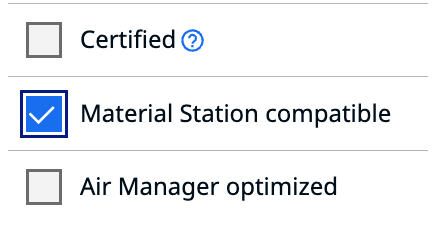
In the UltiMaker Marketplace, check if the material is compatible with the Material Station. In the filters on the left side, check the box for "Material Station compatible". If the material is not shown, it either really can't be used in the Material Station (for reliability reasons) or the profile has not yet been updated by the material manufacturer. In that case, you can reach out to the manufacturer to request an update.
Note: The updated material profiles contain the prime and deprime parameters. Using materials in the Material Station without these settings can lead to issues during loading or unloading the filament, such as ER61 - Material Station failed to unload material.
Synchronizing material profiles
Before starting a print with third-party (Marketplace) materials, or loading the material on the printer, first install the material profile on the printer. This allows you to select the correct material type during loading and prevents configuration warnings.
Synchronizing material profiles can be easily done via the Digital Factory, or via USB if the printer is not connected.
When the profiles are available on the printer, you can select the correct material type after loading a new spool. In the Configuration menu, select the correct bay and then press Select type. Scroll to the bottom of the list (past the generic materials) to Select other material. In the next menu, you can find the brands and material types of your synchronized Marketplace profiles.
Marketplace materials do not include separate profiles for different colors. If you have multiple colors available, you can duplicate the profile in UltiMaker Cura. Go to the Manage materials overview in the Cura Preferences. Select the material profile, then press the hamburger menu at the top, and click Duplicate. You can now change the display name and color of the material, but all other properties set in the profile will stay the same. Click the Unlink Material button at the bottom. Repeat this for all material colors.
Note: Don't forget to click Unlink Material, otherwise the duplicate profile(s) will not be synced with the printer.
Spool selection and switching
The Material Station selects spools based on loading order. When there are multiple spools of the same material type (and optionally, color) loaded into the Material Station, the Pro Bundle will always consider the first loaded material spool as the oldest spool and therefore the first in line for printing. It is not possible to manually select which spool or material bay must be used for a print. This should not be necessary, because even if the oldest spool does not have enough material left to finish the print, the Material Station will automatically switch over to the next spool when the material runs out.
The Material Station offers the same convenient spool switching feature for Marketplace materials as for UltiMaker materials. If the material on the spool in use runs out during the print, the Pro Bundle will automatically unload the remaining filament and switch to the next spool of the same material. For this feature to work, it is important that the correct material profile is selected for all Marketplace material spools.


