All UltiMaker materials are NFC-tagged. Therefore, UltiMaker materials are automatically detected and read by the Material Station.
If the printer is connected, the loaded configurations are visible in UltiMaker Cura and on your printer management page in the UltiMaker Digital Factory. When preparing a print job in UltiMaker Cura, you can select from all possible configurations in the configuration panel, including dual extrusion combinations. When receiving a print job, the Material Station and printer will automatically forward the correct material spool. You can also manually select a configuration if the required material(s) and print core(s) are not yet installed in the Pro Bundle.
Tip: For general information about the Material Station and the printing process, visit these pages: How does the Material Station work? and Printing with the Material Station. For more information about printing with third-party materials, visit these pages: Generic material and Marketplace materials.
Material usage tracking
NFC materials store the amount of material left on the spool. During printing with NFC materials, the S series printers utilize the flow sensor to track material usage and write the new amount to the NFC chip. The amount of material spool is displayed on the user interface via a battery icon. The charge of the battery reflects the amount of material left on a spool. The battery icon is also visible in UltiMaker Digital Factory.
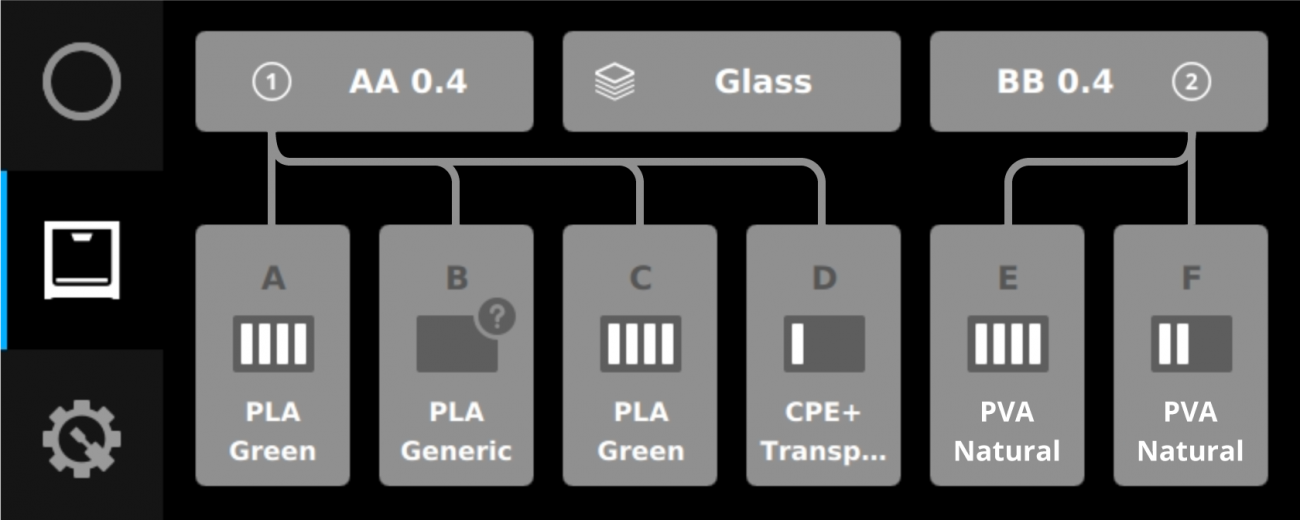
The battery shows 4 full bars when the spool is new, and the battery empties as the spool of filament depletes. For materials that lack an NFC chip, the battery contains a ‘?’ icon.
Note: Although material usage is tracked on the NFC chip, this information will never be used to determine end-of-filament. This data may be incorrect. For example, if the spool was also used on a printer without NFC functionality. The Pro Bundle contains various sensors to trigger end-of-filament without relying on NFC data.
Material colors and spool selection
When you prepare a print in UltiMaker Cura, the available configurations are shown. UltiMaker materials contain information about both the material type (for example, Tough PLA) and color (for example, black). If you select an available configuration, or manually choose a certain color of UltiMaker material, the Material Station will use that information. This means that a print job prepared specifically for Tough PLA Black will only start with that color; the Material Station will not load, for example, Tough PLA Red.
The Material Station selects spools based on loading order. When there are multiple spools of the same material type and color loaded into the Material Station, the Pro Bundle will always consider the first loaded material spool as the oldest spool and therefore the first in line for printing. It is not possible to manually select which spool or material bay must be used for a print. This should not be necessary, because even if the oldest spool does not have enough material left to finish the print, the Material Station will automatically switch over to the next spool when the material runs out.
Tip: If you have a preference (for example, you want to avoid the spool switch), you can unload all spools of that material type and color, and reload them in the order you wish for them to be selected.
If you have several spools of a certain UltiMaker material loaded, and the color of the print does not matter, you can prepare your print in Cura for "Any color". In the Configuration panel, select Custom, choose the UltiMaker material type, and select "Any color". The Material Station will then ignore the colors of the pre-loaded spools of the required material type and start loading the oldest spool first.
However, once a spool is selected, the color of that spool will be used for the entire print. If the print started with, for example, Tough PLA Black, the Material Station will only switch to another spool of Tough PLA Black if the first spool is empty.
Automatic spool switching
As described above, the Material Station will automatically change to a new spool if the first one is empty. This spool-switch procedure will also start if there is a severe extrusion problem with that material, for example, if the filament is tangled on the spool. After the deprime process, the Material Station will rewind the last part of the empty spool; due to the length of the extrusion train, there will be approximately 2 meters of filament left.
The Material Station will now select the next spool based on the conditions described earlier: the same material type and color (even for "Any color" prints), in the order that the spools were loaded.
If no other spool of the same material is available, the printer will remain in a paused state until another spool is placed inside the Material Station.


