To use UltiMaker Cura, you must add at least one printer. This is part of the welcome setup after you install Cura for the first time, but you can always add more printers later via the Printers panel in the Cura interface.
UltiMaker Cura is compatible with UltiMaker 3D printers, but also with many other printer brands. There are a few workflows for adding a new printer, depending on the printer brand and connectivity status. Select which situation applies from the dropdowns below.
Tip: If the accordions do not expand when you click on them, please refresh the page.
UltiMaker 3D printer(s) connected via Digital Factory
Your UltiMaker 3D printers which are connected to the Digital Factory can very easily be added to UltiMaker Cura by signing in to your account. The UltiMaker Digital Factory is currently available for the S series, Ultimaker 3, and UltiMaker 2+ Connect.
In the printer brand selection panel, select Ultimaker printer. The next screen will prompt you to sign in to the Digital Factory. After doing so, all connected printers will automatically be added to Cura.
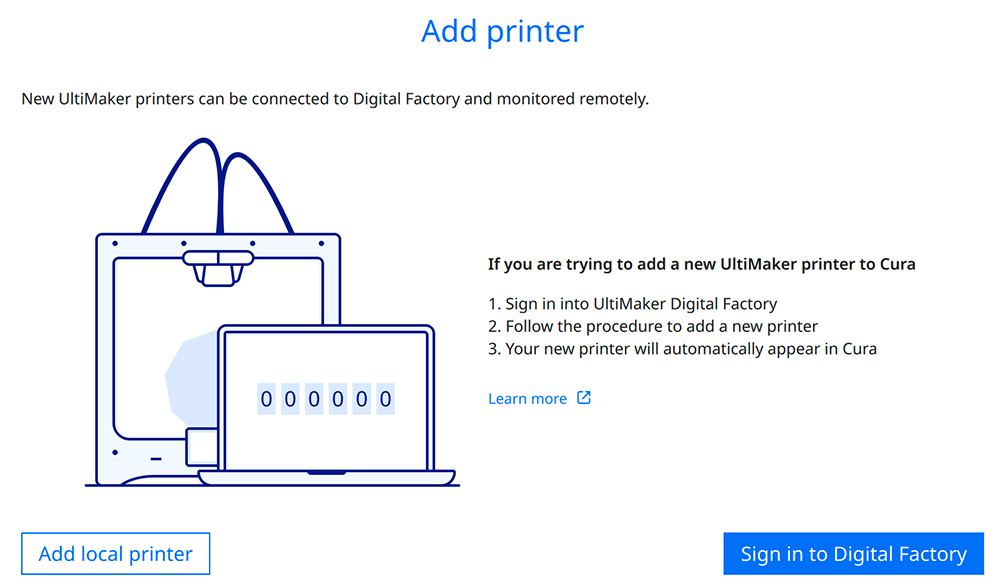
If you want to add more printers, select the + Add Printer button in the Printers tab in Digital Factory, and get the 6-digit code from the printer via the Network menu.
Tip: Learn more about connecting your printers to the Digital Factory in this this page.
UltiMaker 3D printer(s) connected via local network
Follow these steps for your UltiMaker printers that are connected to the network but not to the Digital Factory. The UltiMaker S series, Ultimaker 3, and UltiMaker 2+ Connect offer network connectivity.
Note: You can only add printers on the same local network. You can start print jobs remotely, but most features are exclusively available via the UltiMaker Digital Factory. Consider setting up a cloud connection to benefit from these options.
In the printer brand selection panel, select Ultimaker printer. In the next screen which prompts you to sign in to the Digital Factory, select Add local printer. Under the header Add a networked printer, you will see a list of all printers connected to the same local network. Select the right printer and click Add.
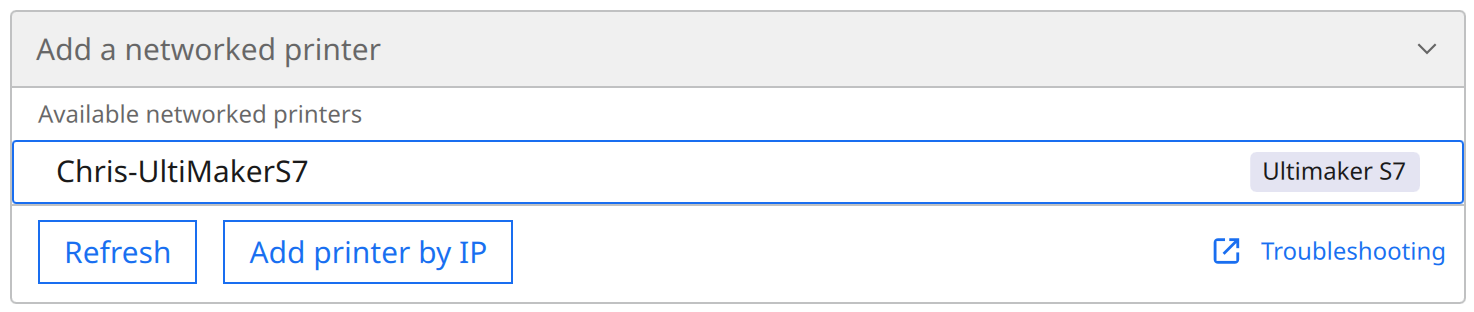
If you do not see your printer in the list, click the Refresh button. Alternatively, you can also add a printer by entering its IP address.

UltiMaker 3D printer(s) not connected to a network
Follow these steps if you own an UltiMaker 3D printer that is not connected to a network.
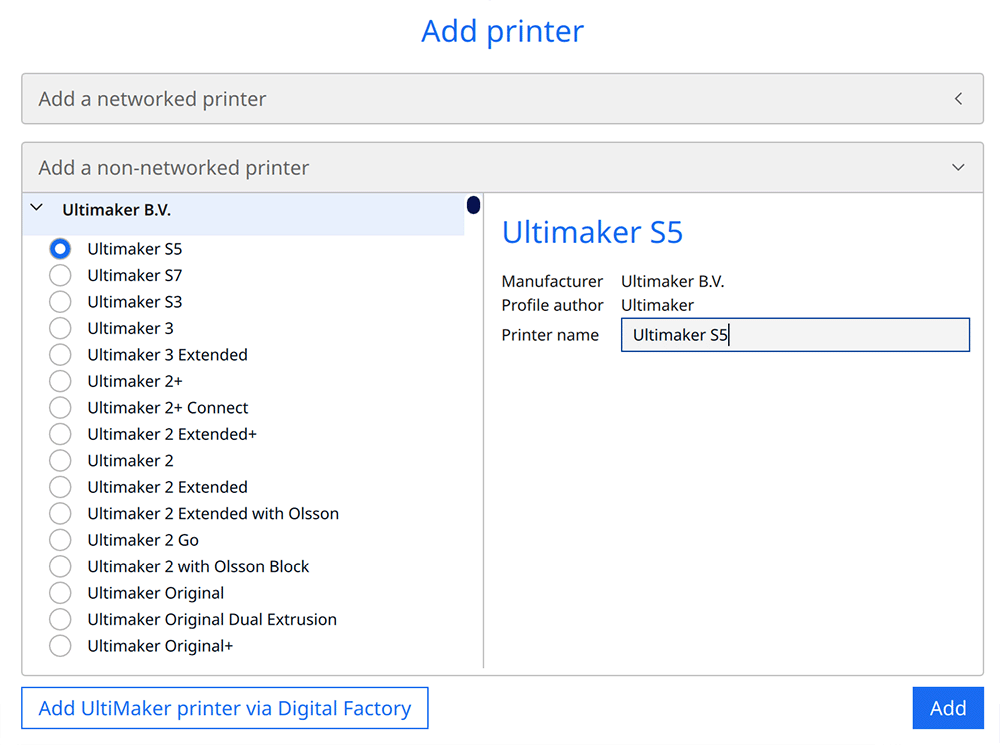
In the printer brand selection panel, select Ultimaker printer. In the next screen, select Add local printer. Under the header Add a non-networked printer, you will see a list of all UltiMaker 3D printer models. Choose which printer you want to add. You can also give your printer a unique name, which can be useful if you have multiple printers of the same type.
Third-party 3D printer(s)
To add a different printer brand, select Non UltiMaker printer in the printer brand selection panel. In the next screen, scroll down under the header Add a non-networked printer to find your printer brand and model. When selecting a printer, you can also give your printer a unique name, which can be useful if you have multiple printers of the same type.
If your printer model is not listed, a profile has not been added to UltiMaker Cura (yet). You can contact your printer's manufacturer to encourage them to add a definition to Cura via a GitHub pull request.
You can also add a custom printer to Cura. This is the first option after UltiMaker printers in the Add a non-networked printer list. After adding the printer, the Machine Settings panel will open. Enter the correct settings for your printer and extruder(s) and click Next to finish adding the printer.
Tip: For more information about adding a custom printer, please visit this page.
After adding your printer(s), you are ready to start preparing your models! If you want more information about Cura first, you can learn more about the UltiMaker Cura interface, the recommended workflow, or how to start your first print in Ultimaker Cura.
Tip:If you have any questions about adding printers to UltiMaker Cura, please contact support. For contributing printer definitions to Cura, please refer to this GitHub article.


