The information in this article applies to UltiMaker S series and F series printers, including the UltiMaker S3, S5, S6, S7, S8, and Factor 4.
Printers running firmware 6.0 and newer feature a firewall option. You can use this firewall to secure your printer on the local network. This article will explain in more detail what you can expect from the firewall.
Tip: For additional security information for S series and F series printers, check this related article: Securing your S series printers using a PIN code lock
Activating the firewall
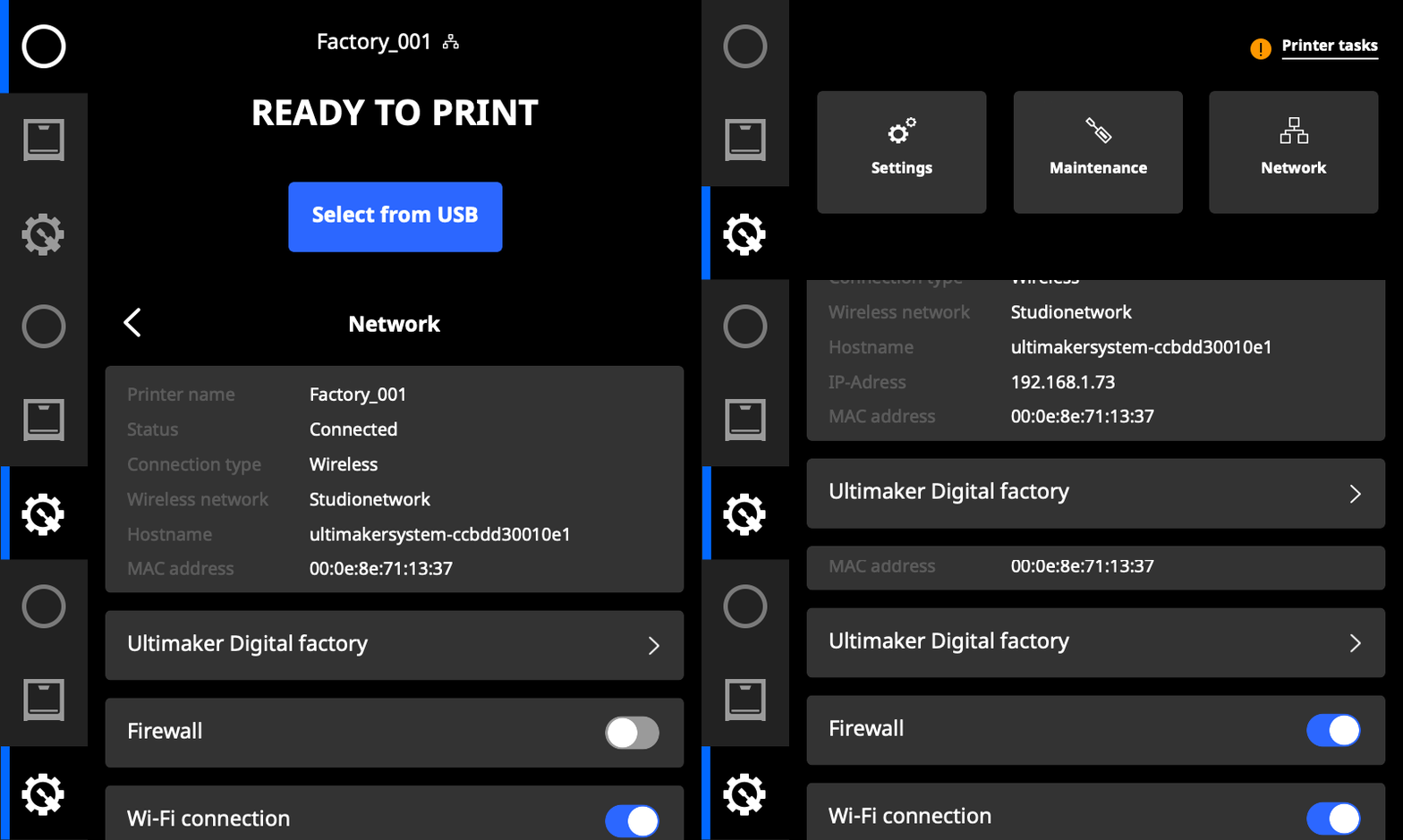
To activate or deactivate the firewall, open the Preferences menu (gear icon), select Network, scroll down, and toggle the switch for Firewall.
Admins of organizations that have an active UltiMaker software subscription can also toggle the firewall on and off remotely via the UltiMaker Digital Factory.
What protection does the firewall give?
The firewall will block all unsolicited local network traffic of your printer. This means that users on the local network will not be able to discover the printer using UltiMaker Cura. The printer will also not be able to receive any print jobs via the local network. The printer is effectively secured from any local network activity.
The usage of the printer is limited to the UltiMaker Digital Factory. With the printer connected to your UltiMaker Account, you can now use the full functionality of the Digital Factory securely to start, stop, and monitor your print job.
Note: The network firewall will also currently block material profile synchronization via the network. If you need to install a material profile to your printer, please temporarily disable the firewall and connect via local network. If you are encountering printer synchronization errors, please view this troubleshooting guide. Alternatively, you can install material profiles via USB.


