On selected printers, the Options menu can be secured with a PIN code lock. This PIN code lock will prevent unwanted changes to the device by unauthorized users. This feature is available on UltiMaker S series printers and Factor 4.
PIN code options
The PIN code only applies to the Options menu (gear icon). It will not prevent users from starting print jobs or making configuration changes, such as changing materials. However, users who do not know the PIN code will not be able to access or change anything about how the printer operates. This includes, for example, the following:
- Network: Users cannot set up a new network connection, disconnect the printer from a network, or disconnect the printer from the Digital Factory.
- Sensors: Users cannot disable certain sensors that are important for the safe and reliable operation of the printer, such as the flow sensors, open bracket detection, or door sensor.
- Maintenance: Users cannot access the Maintenance menu to check the print head, build plate, or use the diagnostic features.
- Firmware: Users cannot change the firmware subscription channel or update to a newer version from the menu (either via the network or USB).
Enabling the PIN code
The PIN code can be enabled from the Digital Factory. This means your printer should be connected to the Digital Factory. Follow the steps below.
Note: Only workspace Admins can enable or remove PIN codes.
- Go to digitalfactory.ultimaker.com to view all printers within your workspace.
- Select the printer you would like to protect.
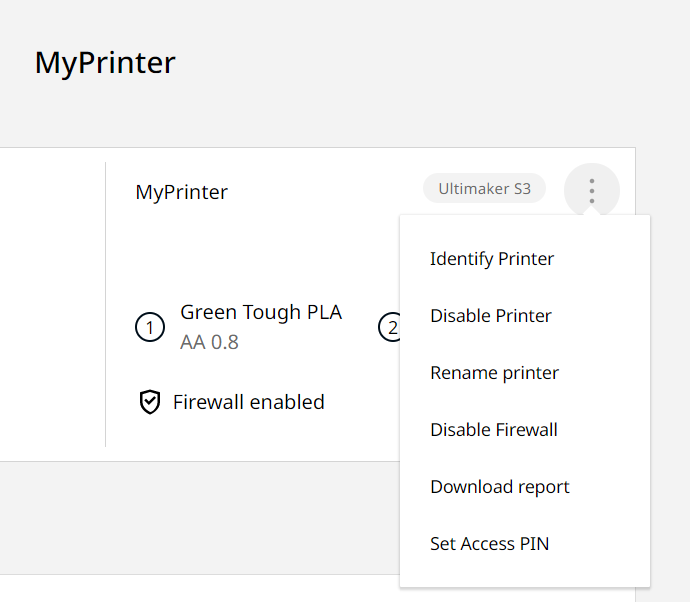
- Select Set Access PIN from the context menu (see image below).
- Input the PIN code and confirm it.
Your printer settings are now PIN code secured. The printer should now display a lock icon on top of the Options icon (gear) on its display. If a user attempts to access this menu, they will now be required to enter the PIN code that you have selected.
Note: Admins who set the PIN code should distribute the code to all printer users who will need access to the Options menu. Ensure to take appropriate security measures when sharing the code.
Removing the PIN code
You can easily remove the PIN code through the Digital Factory. Note that, like enabling the PIN code, removing it can only be done by workspace admins in Digital Factory.
- Go to digitalfactory.ultimaker.com.
- Select the printer for which you want to remove the PIN code.
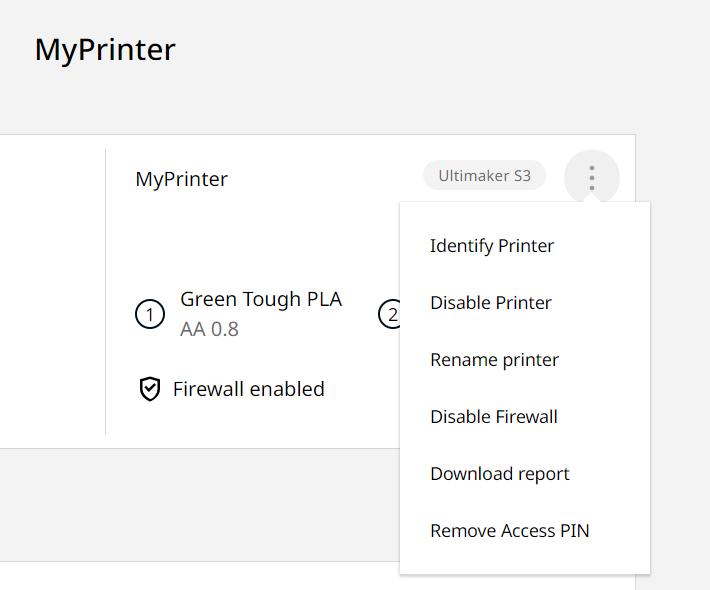
- Select Remove access PIN from the context menu (see image below).
- The PIN code is now removed from the printer.
Anyone can now access the settings menu without the PIN code.
Change PIN code
Sometimes, you may need to change the current PIN code to a new one. For example for security reasons or if the old code is forgotten. To change the PIN code, simply remove the PIN code in Digital Factory and then set a new one by following the steps described above.


