Applies to: Paid subscription plans
Note: The roles available in your Workspace depend on its subscription track (PRO or EDU).
This article explains the user roles available in the UltiMaker Digital Factory. Roles define what a user can see and do within a Workspace.
In this article, you will learn:
- How to change a user’s role
- The roles and permissions for the Professional (PRO) track.
- The roles and permissions for the Education (EDU) track.
Note: The roles available in your Workspace depend on its track. To learn more, see: What are Professional and Education Workspaces?
How to Change a User's Role
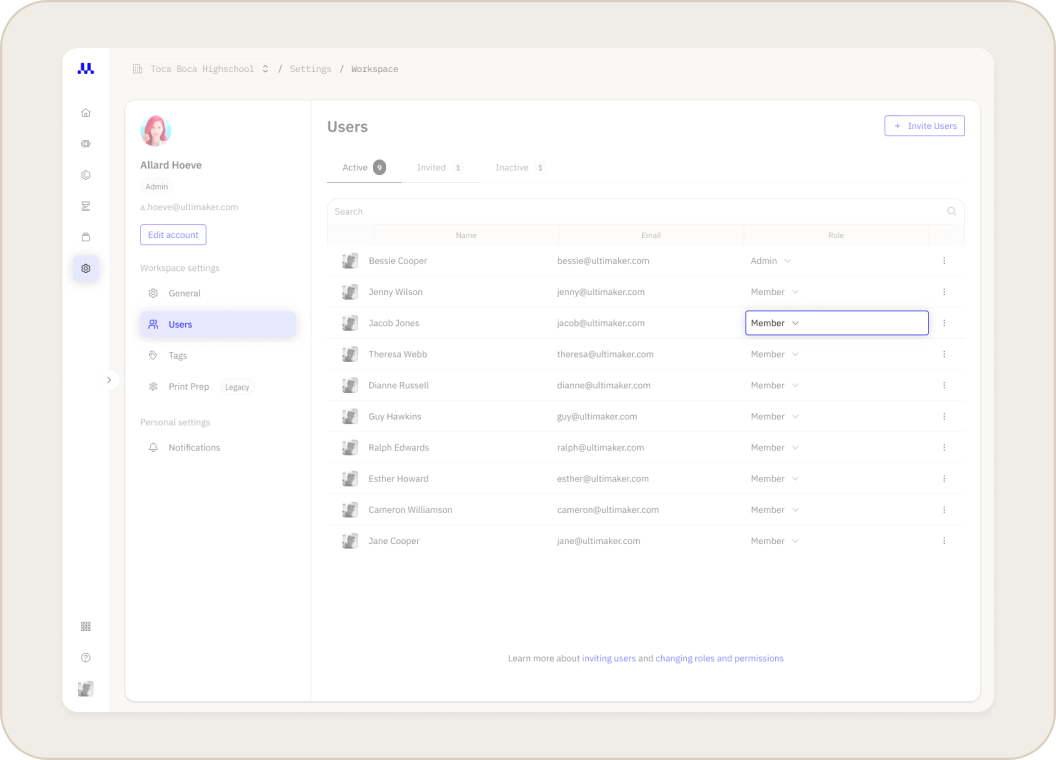
After a user accepts their invitation and appears in your user list, you can change their assigned role at any time.
- Navigate to Settings > Users.
- Find the person in the user list whose role you want to change.
- Click on their current role in the Role column. A dropdown menu will appear.
- Select the new role you wish to assign. The change is saved automatically.
Professional Track Roles
Admin
The Admin is the highest-level role with complete control over the entire Workspace. They are responsible for all workspace-level settings, user management, and billing.
Manager
The Manager role is designed to lead a specific team within the Workspace. This allows an Admin to delegate day-to-day operational control of a team's users and resources.
Member
The Member is the standard role for users who focus on production and collaboration within a team. They work within the structure set by Admins or Managers.
Guest
"The Guest role is for external collaborators who need limited, project-specific access. This role is ideal for participating in a specific task without providing broad access to workspace resources.
Education Track Roles
Admin
This role has complete control over the Workspace, identical to the Professional Admin. In an educational setting, this is typically a department head or IT director responsible for the school's 3D printing infrastructure.
Educator
The Educator acts as the classroom lead, managing the resources and users for their specific class. This role is the parallel to the Manager in the Professional track.
Student Manager
This role is for trusted students who assist the Educator with managing the classroom's print queue. It allows students to take on more responsibility within a controlled setting.
Student
The Student role is designed for safety and guided learning. When a school upgrades from the free plan, pupils can be invited as Student users, giving them direct but limited access to the platform.
Related Articles


