Applies to: Studio, Business, and all Education plans (Free EDU, Classroom, and School)
Note: User Roles dependent on subscription.
This article explains how Workspace Admins can manage their team by inviting new people and removing existing users.
In this article, you will learn:
- How to invite a user to your Workspace
- How to change a user's role
- How to remove a user from a Workspace
How to Invite a User to Your Workspace
Only users with an Admin role can invite new people to a Workspace. The user role can be changed at any time after the user accepts the invitation.
- Log in to Digital Factory and ensure you are in the correct Workspace.
- In the bottom-left corner, click your user icon and select Settings from the menu.
- Navigate to the Users tab.
- Click the Invite users button in the top-right corner.
- Enter the email address of the person you want to invite.
- Click Invite.
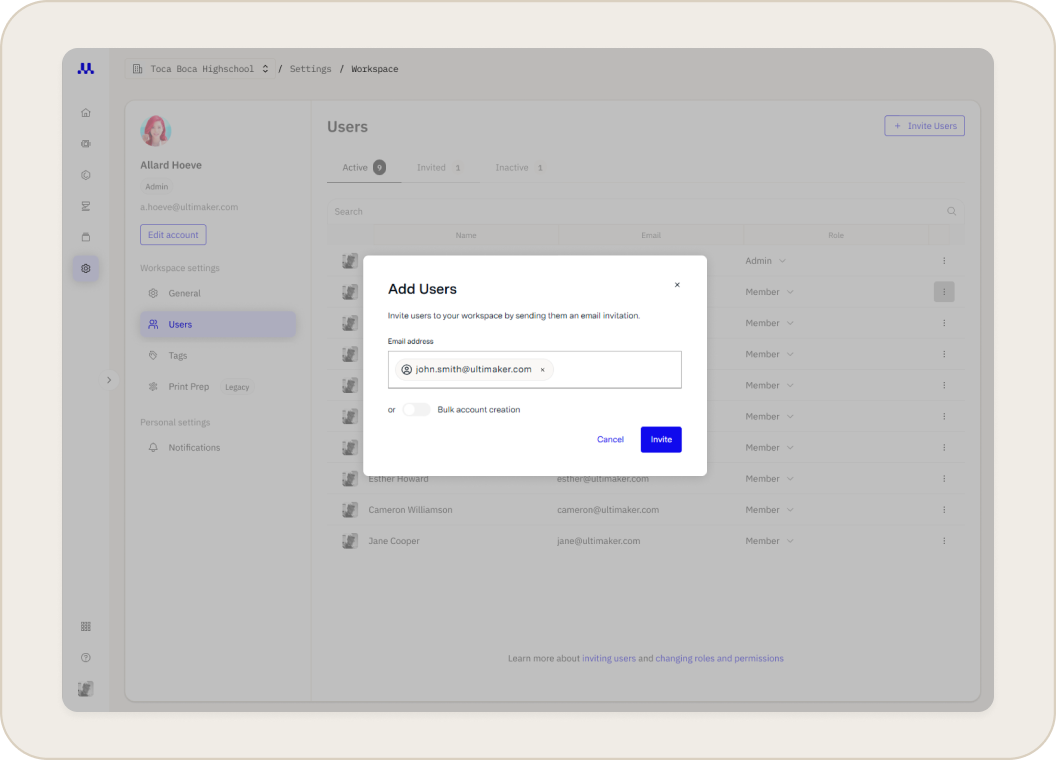
Tip: School and Business plans allow you to create multiple accounts via spreadsheet without users needing to accept invitations. see Bulk Account Creation
How to Remove a User from a Workspace
An Admin can remove other users from a Workspace at any time.
- Navigate to Settings > Users.
- Find the user you wish to remove from the list.
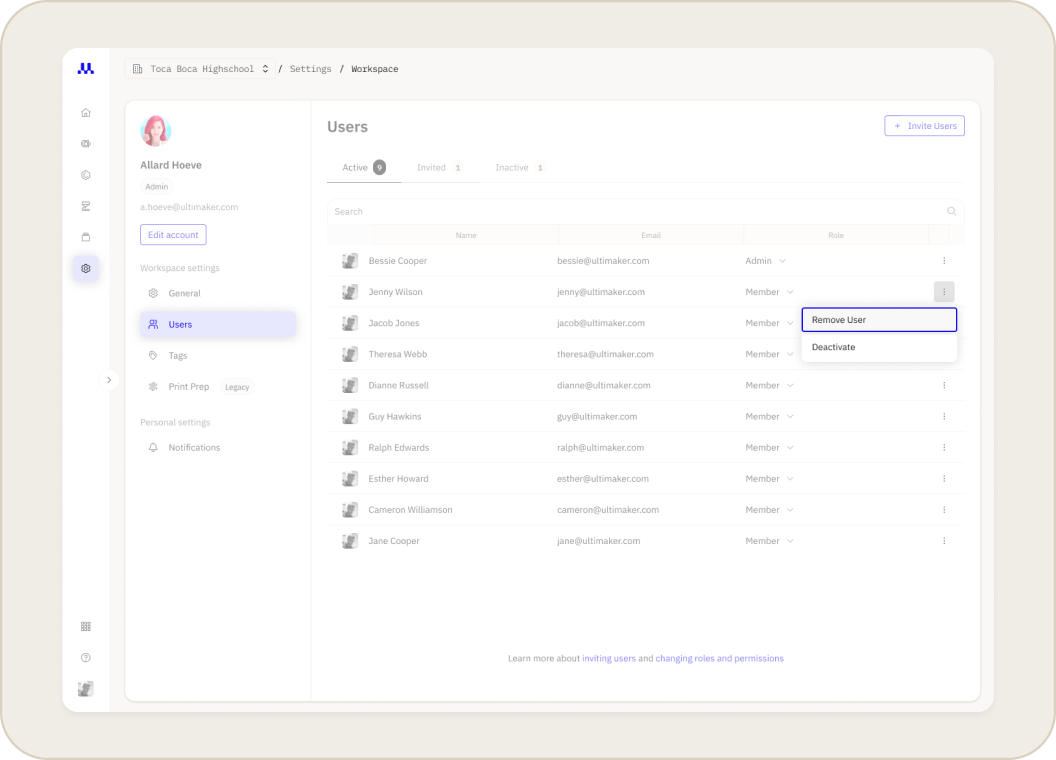
- Click the three-dot menu on the right side of that user's entry.
- Select Remove from workspace from the dropdown menu.
- A confirmation window will appear. Click Remove user to finalize the action.
Related Articles


