Applies to: All plans
Note: Free PRO only allows one user per workspace, you will have to delete instead of leave workspace.
This article explains how to join a Workspace after you receive an invitation, and how to leave a Workspace you are a member of.
In this article, you will learn:
- How to join a Workspace
- How to leave a Workspace
- How to delete a Workspace
How to Join a Workspace
When an Admin invites you to join their Workspace, you will receive an invitation via email.
- Open the invitation email and click the Join Workspace button.
- You will be redirected to a sign-in page.
- If you already have an UltiMaker account, sign in to accept the invitation.
- If you do not have an account, click Create an account and follow the steps to set one up.
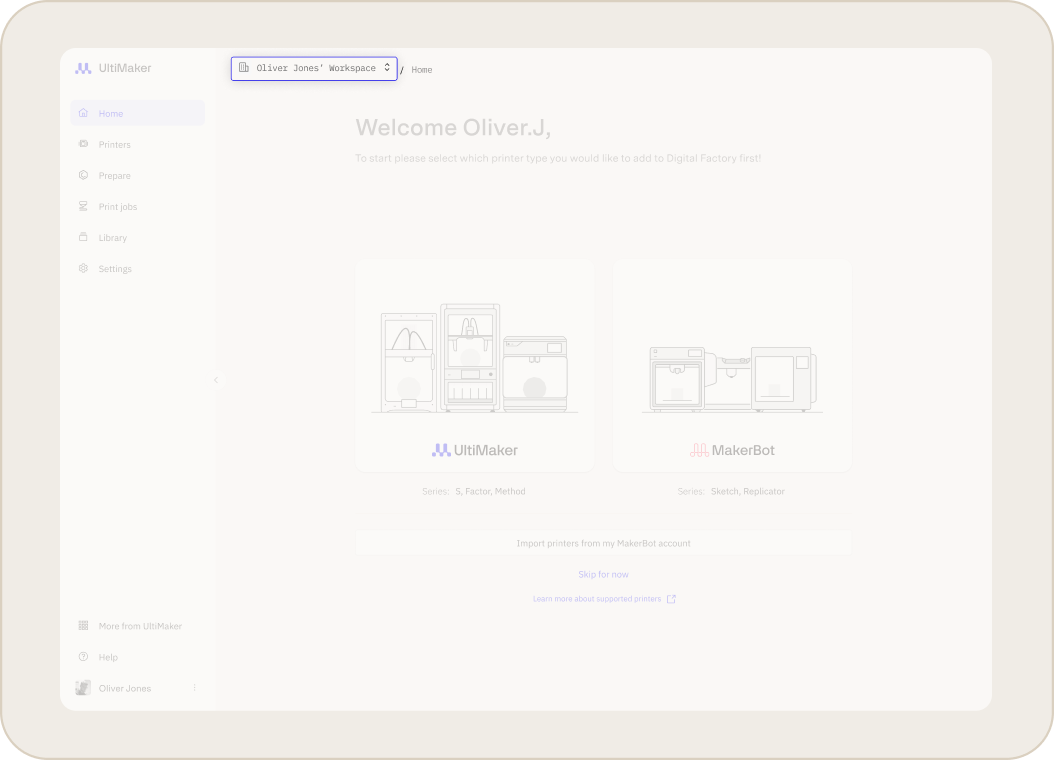
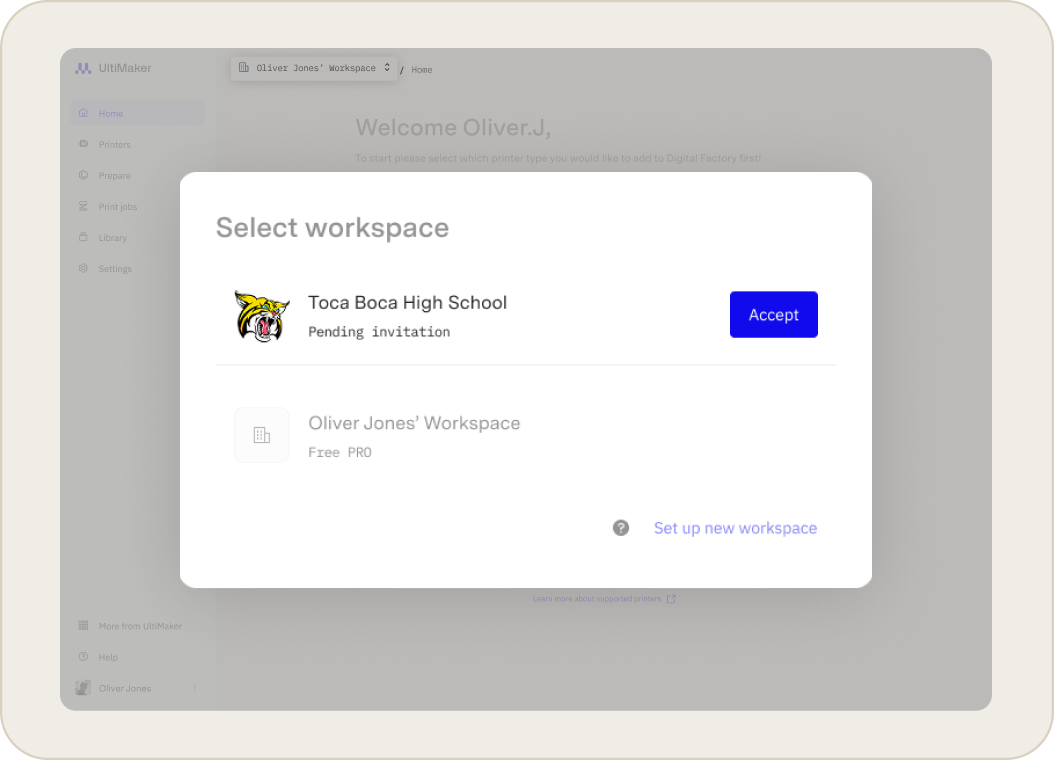
- If you do not see the new workspace or are unsure if you are in the correct one, click the workspace selector in the top navigation and look for a pending invitation.
- Once you have accepted, the new Workspace will be available in your Digital Factory account.
How to Leave (or Delete) a Workspace
You can leave a Workspace at any time, which will revoke your access to its shared printers and library projects.
- Log in to Digital Factory.
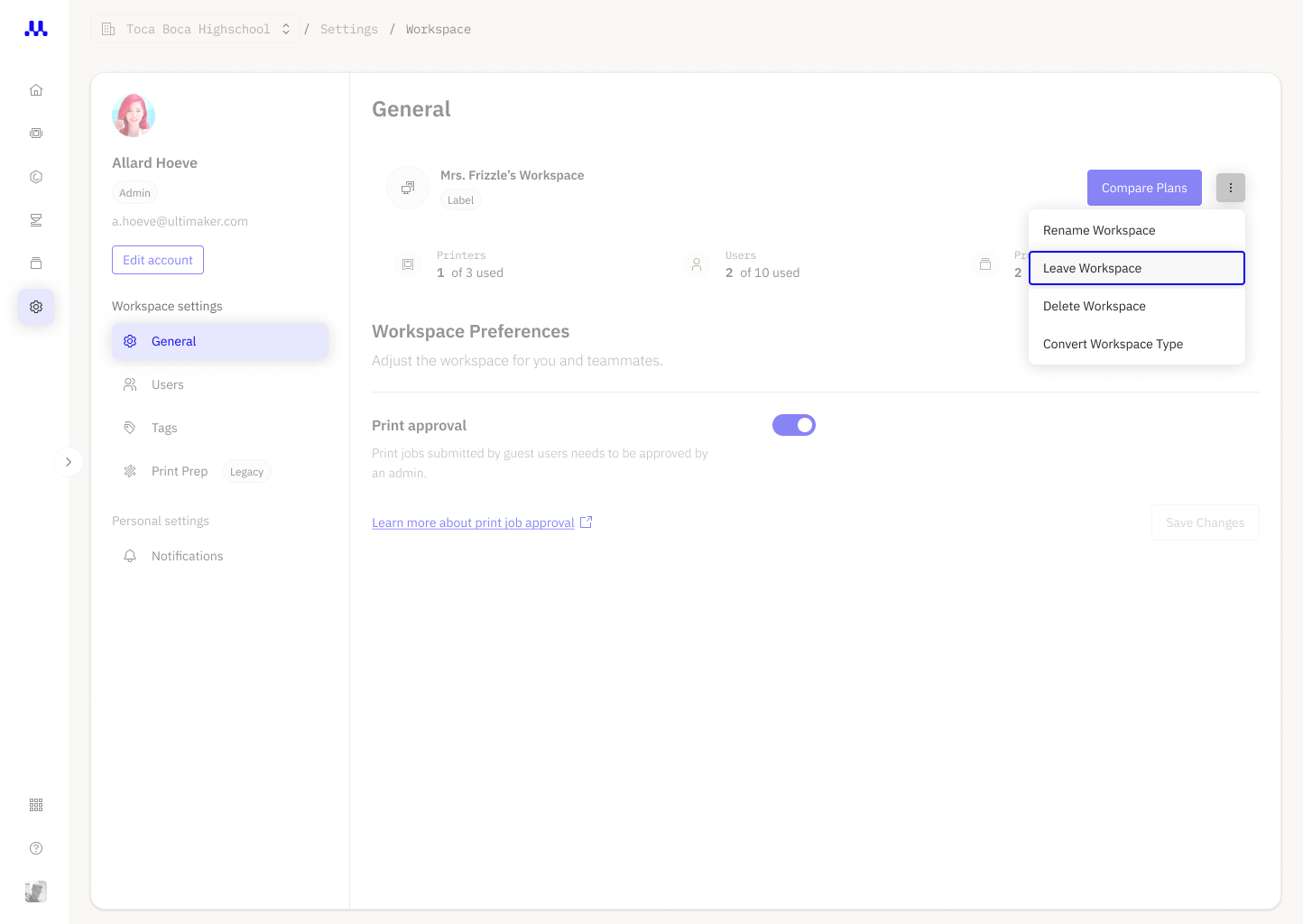
- Click Settings > General and click on the overflow menu (three dots)
- Select Leave Workspace from the menu.
- Read the confirmation prompt carefully and click Leave Workspace to confirm.
Important:
(1) If you are the only Admin in a Workspace, you cannot leave. You must first assign the Admin role to another member before you can leave the Workspace.
(2) Since Free PRO only allows one user per workspace, you will have to delete instead of leave workspace.
Related Articles


