When placing a third-party material spool in the Material Station, the NFC reader will not be able to automatically detect the material type. This will then be indicated on the display by an exclamation mark for the corresponding material bay.
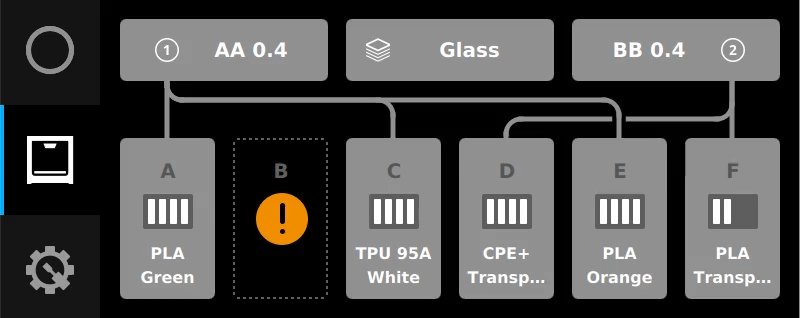
You can manually select the correct material type. Tap the ‘!’ to view the list of available materials. Scroll through the list and select your material type. After selecting, the material configuration menu will now show the material type. Note that non-UltiMaker materials will not have the battery indicator.
Note: Print jobs sliced with generic material in UltiMaker Cura can only be printed if the user manually selects a generic material type within the configuration menu of the printer.
The Material Station requires extra parameters to successfully print and handle materials. These are the prime and deprime parameters, which affect the loading and unloading of the material from the Material Station to the print head. Because it is necessary to have the prime and deprime values in the material profile, it is not possible to begin a print by overriding the configuration.
Spool selection and switching
The Material Station selects spools based on loading order. When there are multiple spools of the same material type loaded into the Material Station, the Pro Bundle will always consider the first loaded material spool as the oldest spool and therefore the first in line for printing. It is not possible to manually select which spool or material bay must be used for a print. Note that generic material profiles do not offer a color selection. When there are multiple generic spools of different colors are loaded, the Material Station will always choose the first loaded spool for the next print job requiring that type of (generic) material.
Tip: Because the Material Station operates under first-in-first-out, you can manipulate which spool will be used for the next print job by ejecting all generic materials and reloading them into the Material Station in the order they need to be utilized.
The Material Station offers the same convenient spool switching feature for generic materials as for UltiMaker materials. If the material on the spool in use runs out during the print, the Pro Bundle will automatically unload the remaining filament and switch to the next spool of the same material.
Note: Because the spool colors are ignored for generic materials, see the material loading order tip above to prevent the Material Station from switching to a different color of the generic material.
Converting to a generic profile
It is always possible to manually override the material type, even for NFC-detected materials. If you have prepared a print job for generic material, but you only have UltiMaker materials loaded in the Material Station, you can manually change the material type in the Configuration menu.
- Select the material that you want to manually override.
- Click Select type to open the list of available material profiles.
- Select the generic material of the same filament type.
- The Material Station will now treat it as a generic material.
Tip: You can easily reset the UltiMaker material type back to using the NFC tag by reloading the material spool, or by selecting the material type and waiting for the NFC to be recognized.


