Note: We are aware of a material loading issue affecting UltiMaker S6 or S8 printers on the Latest firmware (11.2) with a Material Station. In some cases, the filament stops loading slightly above the feeder. If you encounter this frequently, please switch to the Stable firmware (11.1) for a consistent experience while our team works on a permanent fix. Learn more here.
Error description
ER56 indicates a material loading error on Factor 4 or S series printers with a Material Station (S5, S6, S7, or S8). When the printer is unable to successfully pick up the filament at the start of a print or during a spool change, the material failed to load wizard will appear on the screen. Follow the steps in the wizard to recover the filament and reload the spool.
- Before a print: If the display shows ER56 before the start of the print, follow the steps in the guided process on the printer's display. After successfully recovering and reloading the material, you can start the print job again.
- During a spool change: If the error occurs during a print job (when a spool change is needed), the guided process on the display will show all the steps required to resolve the loading problem. After completing the steps and successfully loading the new spool, the print will continue.
Tip: For detailed troubleshooting information, follow the instructions on the display or visit the Material failed to load support article.
Best practices
The following tips can help to improve the reliability of the loading process and reduce the chance of errors:
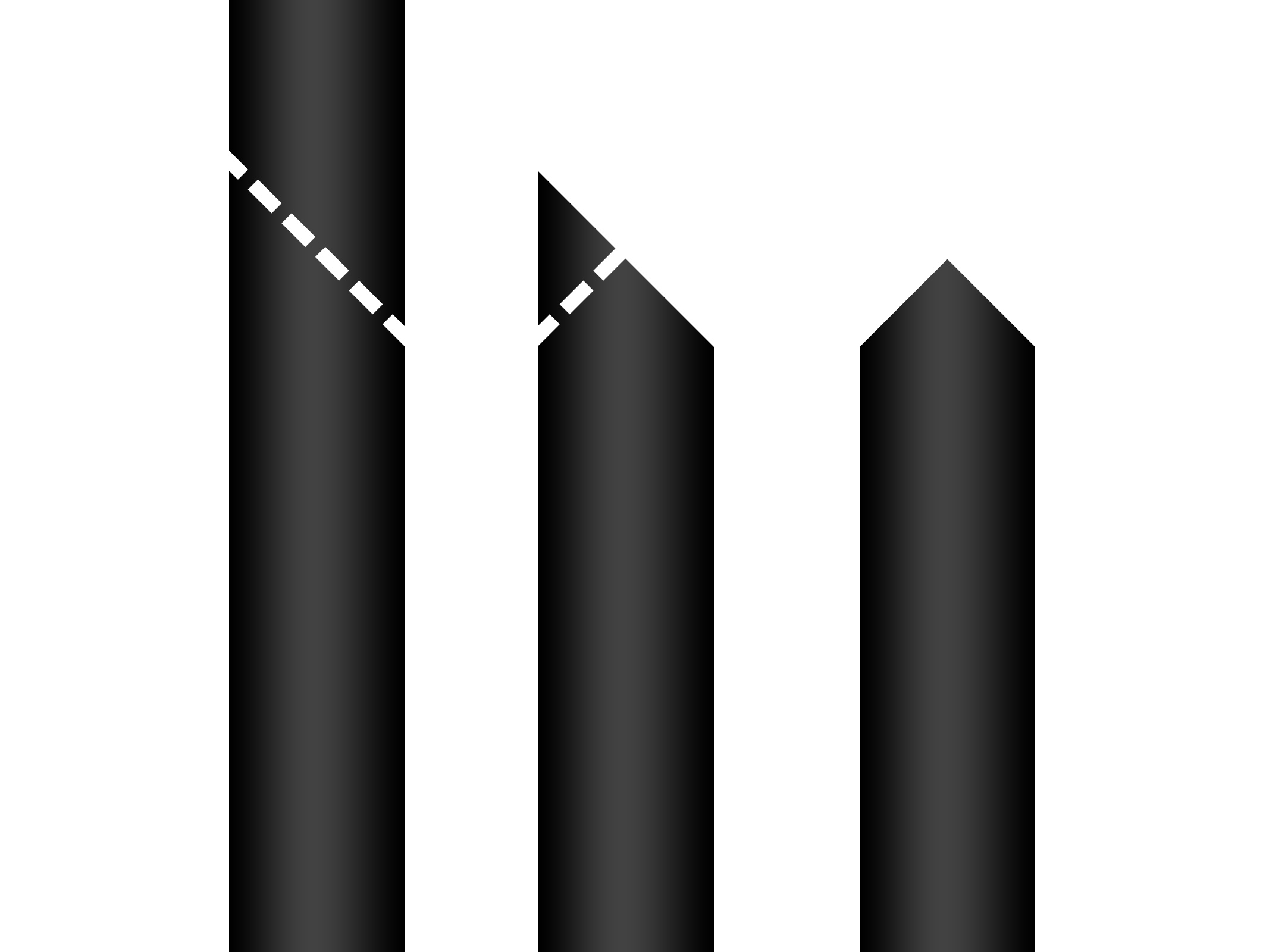
- Cut the filament: Before inserting the filament into the Material Station entry port (pre-loading), cut the end of the material into a short, sharp tip. Use wire cutters or cutting pliers to make a double cut. Alternatively, use a pencil sharpener to get a perfect conical tip (for non-flexible filaments).
- Check the feeder: Always make sure the feeder is correctly closed before loading material. On the S series, ensure that the feeder lever at the back is down. On Factor 4, ensure that the latches at the top of the print head are fully upright and secured.
- Maintenance: Perform timely maintenance on your printer to prevent problems. This includes cleaning the feeders and Bowden tubes for more reliable material handling and loading. Consult the preventive maintenance schedules for S series and Factor 4.
- Spool placement: Although all bays can be used for both extruders, on S series printers, it is recommended to load stiff, brittle, or flexible materials in the straightest extrusion paths. This means Bay A for extruder 1, and Bay F for extruder 2. This is only important on the S series Pro Bundle, not on Factor 4.
Need further support?
If the problem still persists, even after following all the steps of the guided loading failure recovery process, the decoupler or feeder could be defective. Please contact support or your local reseller for further help.
Tip: Save your printer's log files for analysis and share a short video of the printer's behavior when contacting support.


