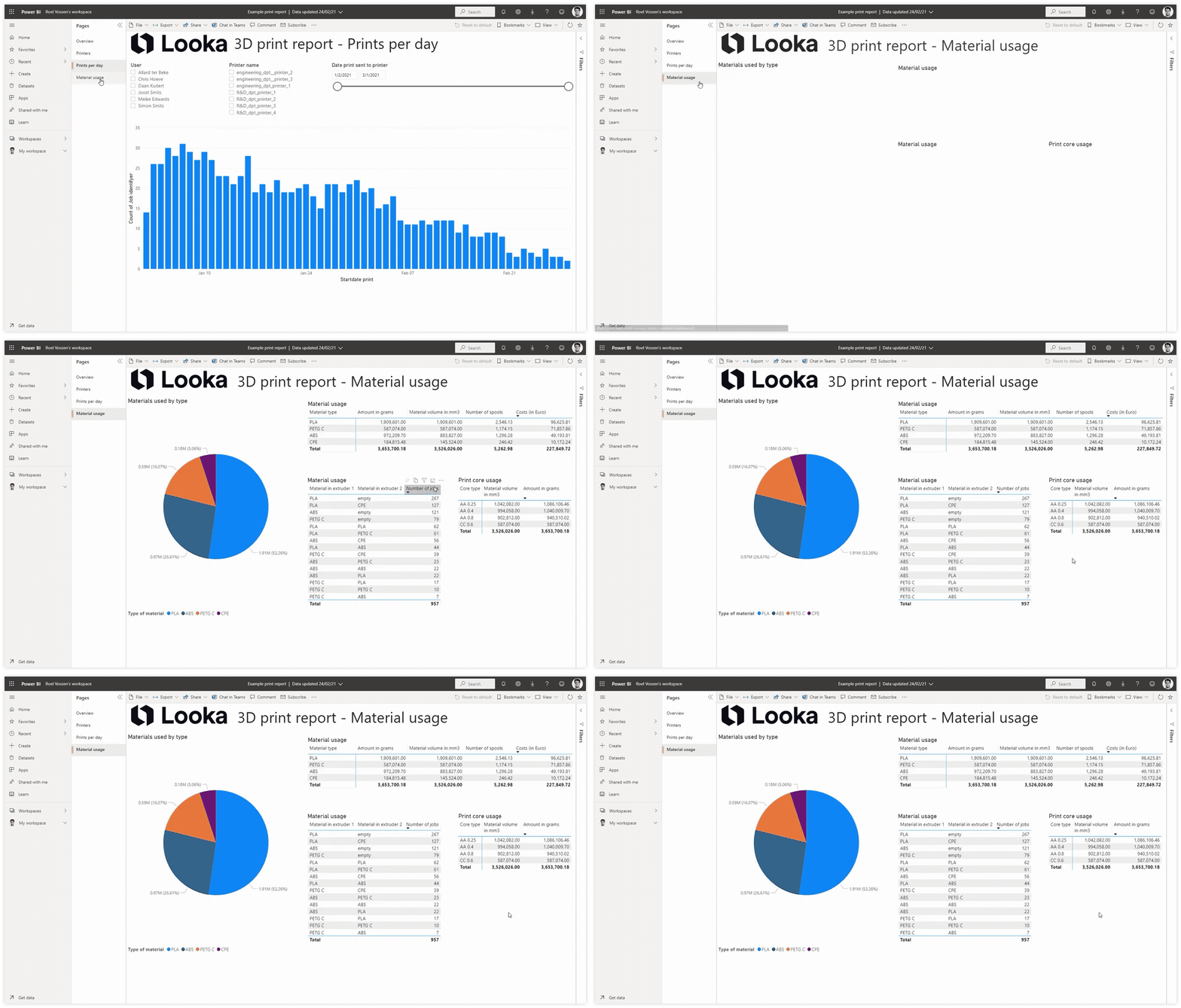
The UltiMaker Digital Factory helps you calculate the value of a 3D printing project, allows you to build a business case to 3D print, and offers tools to gain insight into the usage of your 3D printers.
Why create 3D printing reports
3D printing offers benefits to organizations over more traditional production methods for prototypes, jigs and fixtures, and production parts. Of course, there are also costs associated with 3D printing. In order to gain insight into those benefits and costs, we offer a number of reports and calculations in Digital Factory. Examples of information you can retrieve from Ultimaker Digital Factory are:
- Calculation of cost and lead-time reduction (business value) per project in Digital Library
- Print job report
- Which person is printing the most
- Which printer has the most aborted print jobs
- How much filament is used
- Library projects report
- What are the total cost and lead time savings over all projects
- What requirements do we see the most in print projects
Calculate business value in Digital Library
An easily accessible example of reports is the calculation of the cost and lead-time reduction. Both calculations are done over all 3D printed and purchased units per year.
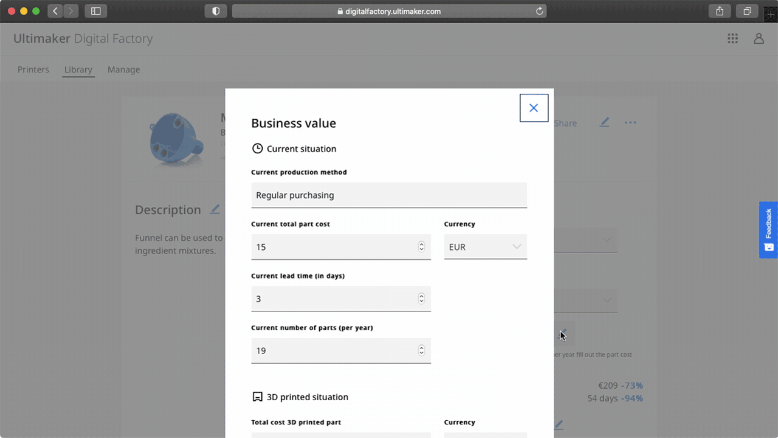
step 1. Fill in business value details
Once you have created a project, you can calculate the cost and lead time reduction of the project by filling out the business value details (Professional and Excellence only). This will help you to quickly showcase the main benefits of your project.
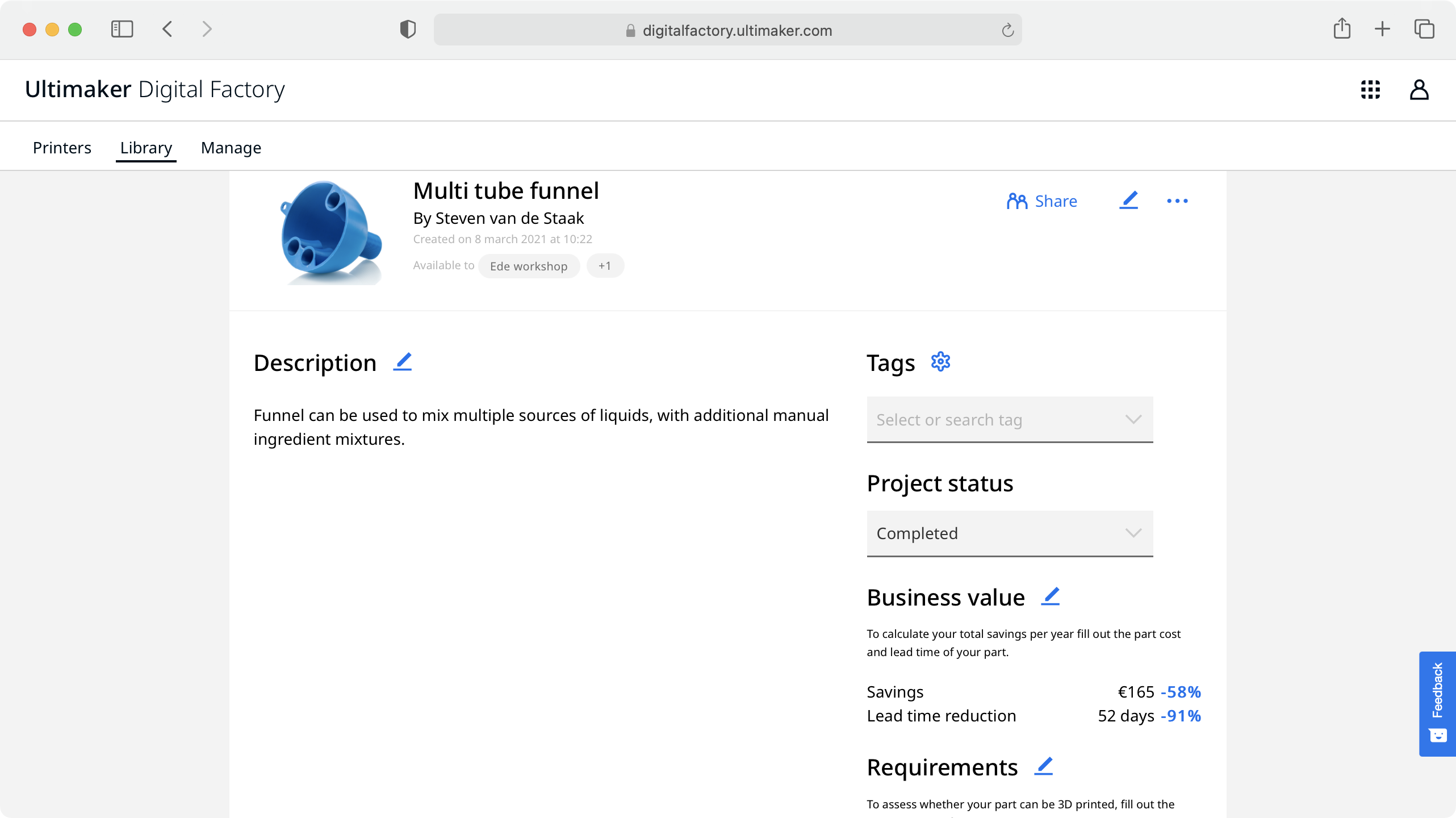
step 2. View business value
The business value will be clearly displayed on the project page.
Library report
For further analysis of projects in the Digital Library, you can download a CSV file with the description of the project, applied tags, owner, creation date, and all the attributes that were filled out in the business value and requirements in the Digital Library. This would for instance allow you to calculate the total savings over all projects in the Digital Library.
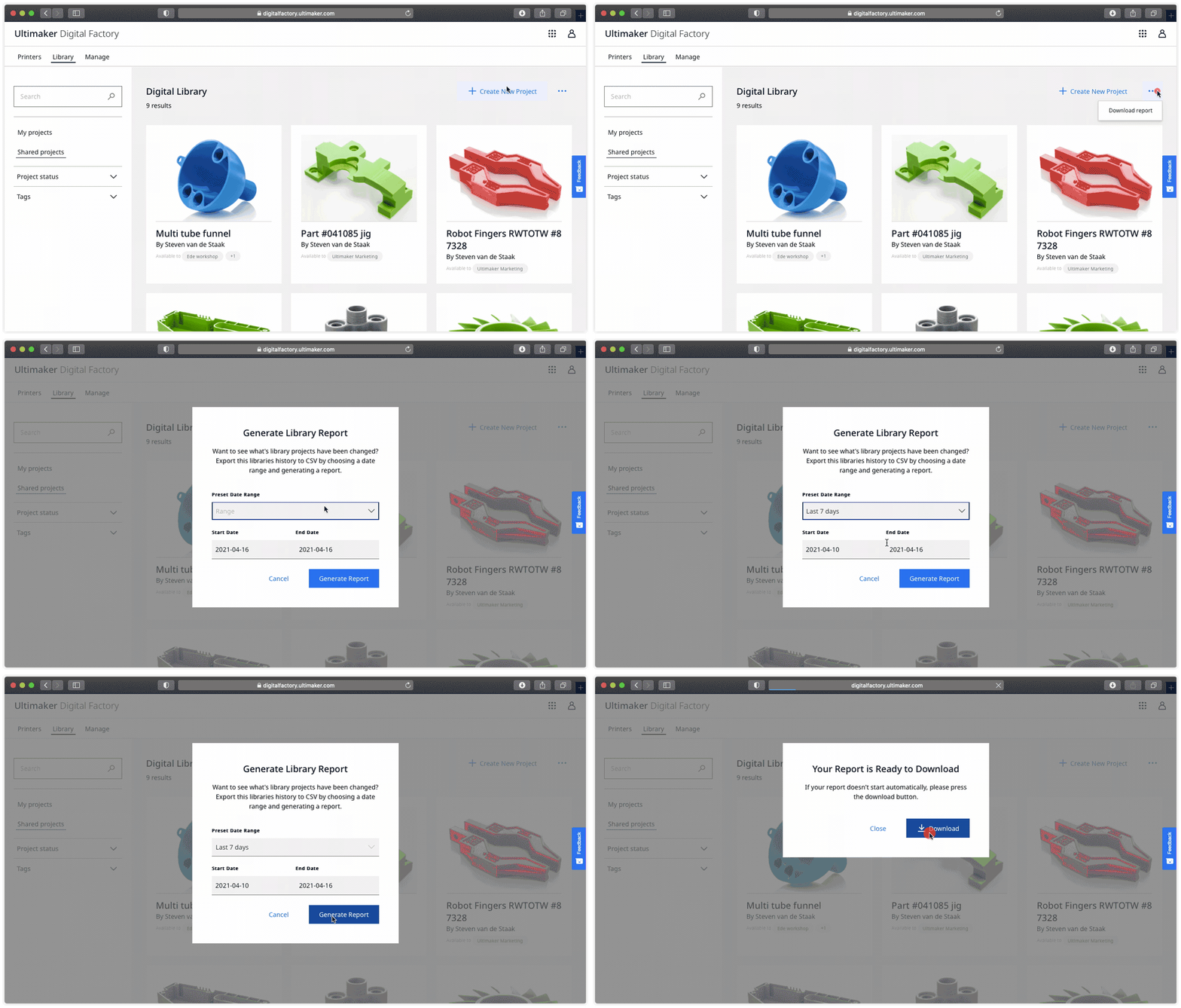
Downloading the library report
- Use the 3 dots in the upper right corner of the Library page.
- From the menu select 'Download report'.
- Select a reporting period or use one of the pre-defined time periods from the dropdown.
- After selecting 'Generate report' the report is downloaded to your computer or, in case that doesn't happen automatically, you can start it manually by clicking 'Download report'.
- After the report has been downloaded it will be located in the downloads folder of your computer.
Printer report
There are two types of printer reports to choose from. You can download a report for a single printer (available to all subscription levels) and a report for all printers in the account (only available for software plans Professional and Excellence).
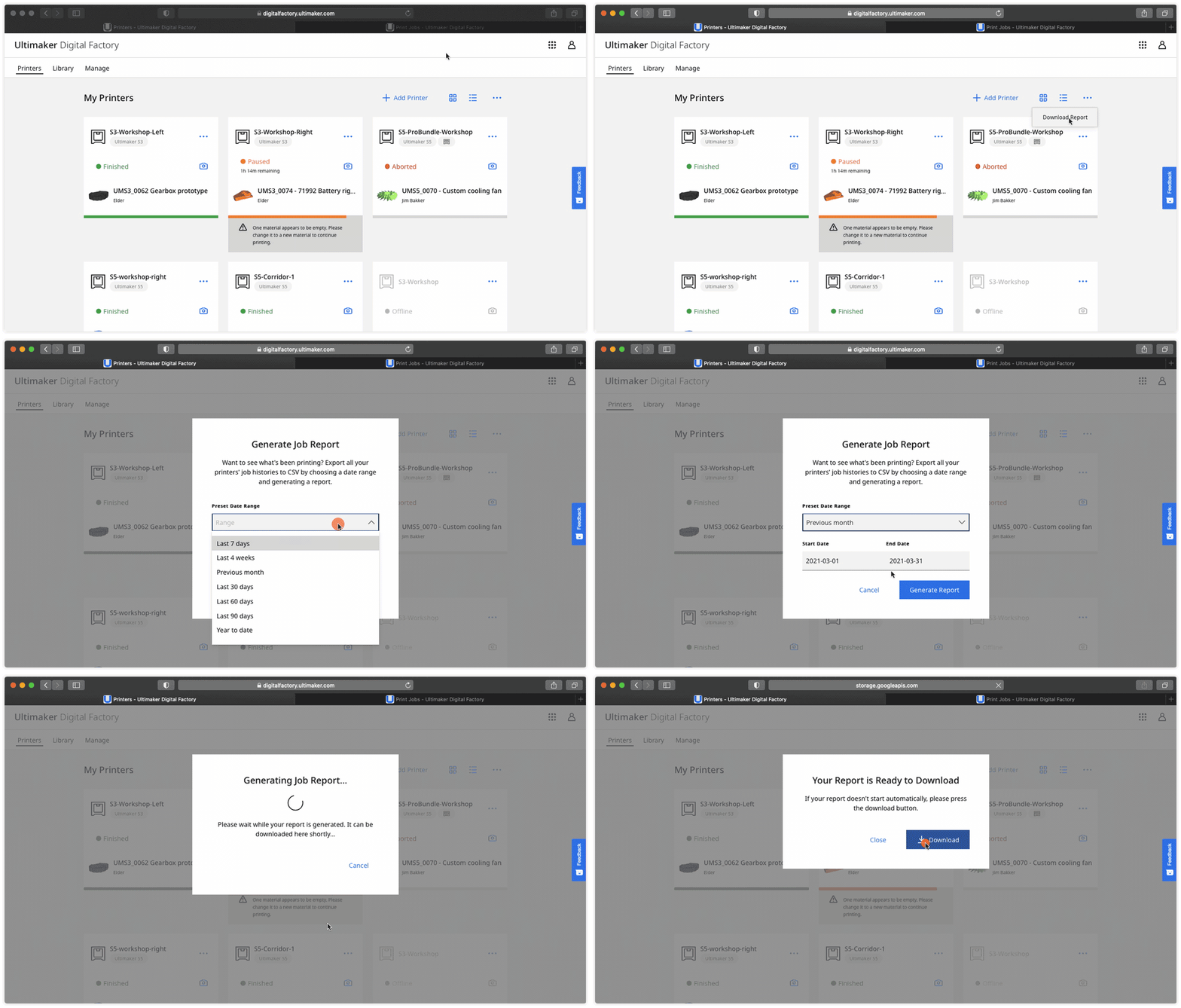
Downloading the printer report
- Visit the Printers page in UltiMaker Digital Factory.
- If you want to report on all printers, select the 3 dots (...) in the upper right corner of the page. If you want to report on a specific printer, select the printer first, and then click on the 3 dots (...) in the upper right corner of the printer.
- From the menu, select 'Download print job report'.
- Select a reporting period or use one of the pre-defined time periods from the dropdown.
- Click 'Generate report' to start collecting data.
- Once the report is finished, click the 'Download report' button to save it to your computer. It will be stored in the Downloads folder of your computer.
Note: See this page to learn what the columns of the print job report mean.
Tools for data analysis
We supply various tools for analyzing the reports you can download in the UltiMaker Digital Factory. Check the Excel and Power BI dashboards below to automatically generate overviews from the downloaded (CSV) report.
 | |
Excel dashboard
Download - Printers, users, and materials (.xlsx)
Allows you to import the print job reports and automatically generates an overview of the users, printers, and materials used. Instructions are contained within the Excel file itself, in the first tab.
|
 | |
Power BI Dashboard
Download - Example dashboard (.pbit)
Download - Instructions (.docx)
Allows you to import the print job reports and automatically generates an overview of the users, printers, prints, and materials used. Has the benefit of combining the materials for extruders 1 and 2 in one table, and uses date-related information for filtering print jobs.
|