Available on: All plans
Note: Changing configuration on printer differs by printer type.
This article explains what to do when a print job's configuration does not match the printer's current setup in UltiMaker Digital Factory.
In this article, you will learn:
- Why a configuration mismatch prevents a print job from starting.
- How to resolve a configuration mismatch by changing the printer's setup.
- How to manage your print queue to print other jobs first.
- How to move a print job to a different, compatible printer.
- When it is possible to override the configuration warning.
What is a Configuration Mismatch?
When you send a print job to a printer, the job is prepared with a specific combination of materials and print cores. If the printer is currently set up with a different configuration, the print job will not start. You will see an Attention notification in the Digital Factory print queue and a message on the printer's display.
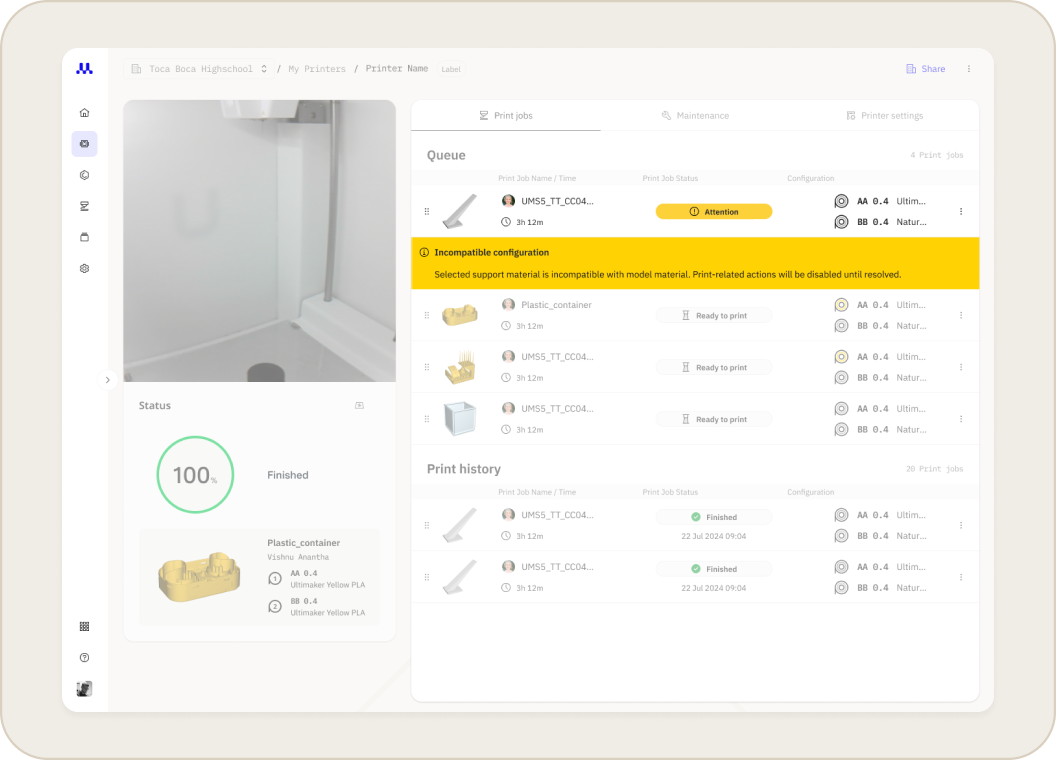
If you have notifications enabled, you will also receive an email with the subject "A printer needs to be reconfigured."
How to Resolve a Configuration Mismatch
When a print job is blocked due to a configuration mismatch, you have several options to get your parts printed.
1. Change the Printer's Configuration
The printer's display will show a Conflicts screen that tells you which materials or print cores need to be changed.
- Follow the instructions on the screen to update the printer's physical configuration.
- Once the materials and print cores match the requirements of the print job, the job will be able to start.
Tip: If you have an UltiMaker S5 or S7 with a Material Station, ensure a compatible material is loaded in one of the bays. The printer will automatically load it when the print starts.
2. Move the Job to Another Printer
If you have another printer that is compatible with the print job's configuration, you can move the job to that printer.
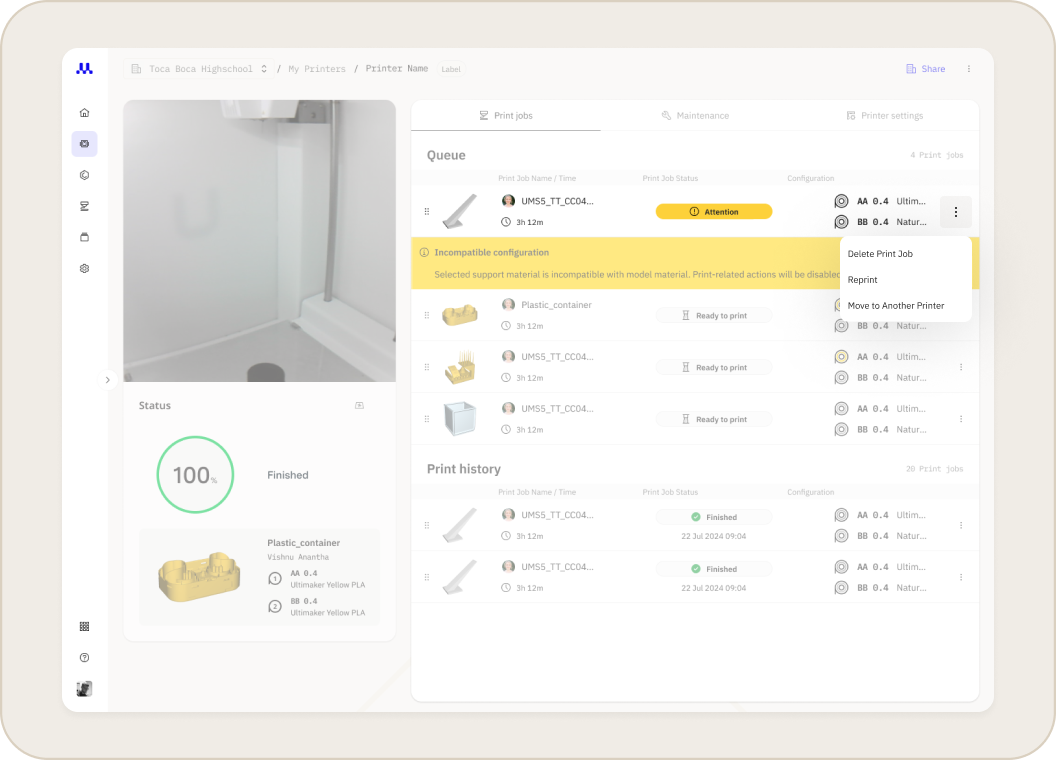
- Click the three dots next to the blocked print job.
- Select Move to Another Printer.
- Choose a compatible printer from the list in the pop-up window.
3. Print Another Job First
If you have other jobs in the queue that match the printer's current configuration, you can print them first.
- In the print queue, find a job that has a matching configuration.
- Click the three dots next to the print job.
- Select Move to Top.
4. Override and Print Anyway
In some cases, you can override the configuration warning and start the print. However, this is not recommended as it can lead to poor print quality or damage your printer.
Caution: Starting a print with the wrong configuration is done at your own risk.
Related Articles


