Product notification
This product has been discontinued, and its end-of-service date has passed. While it is no longer supported, the information on this page is still available for your reference.
|
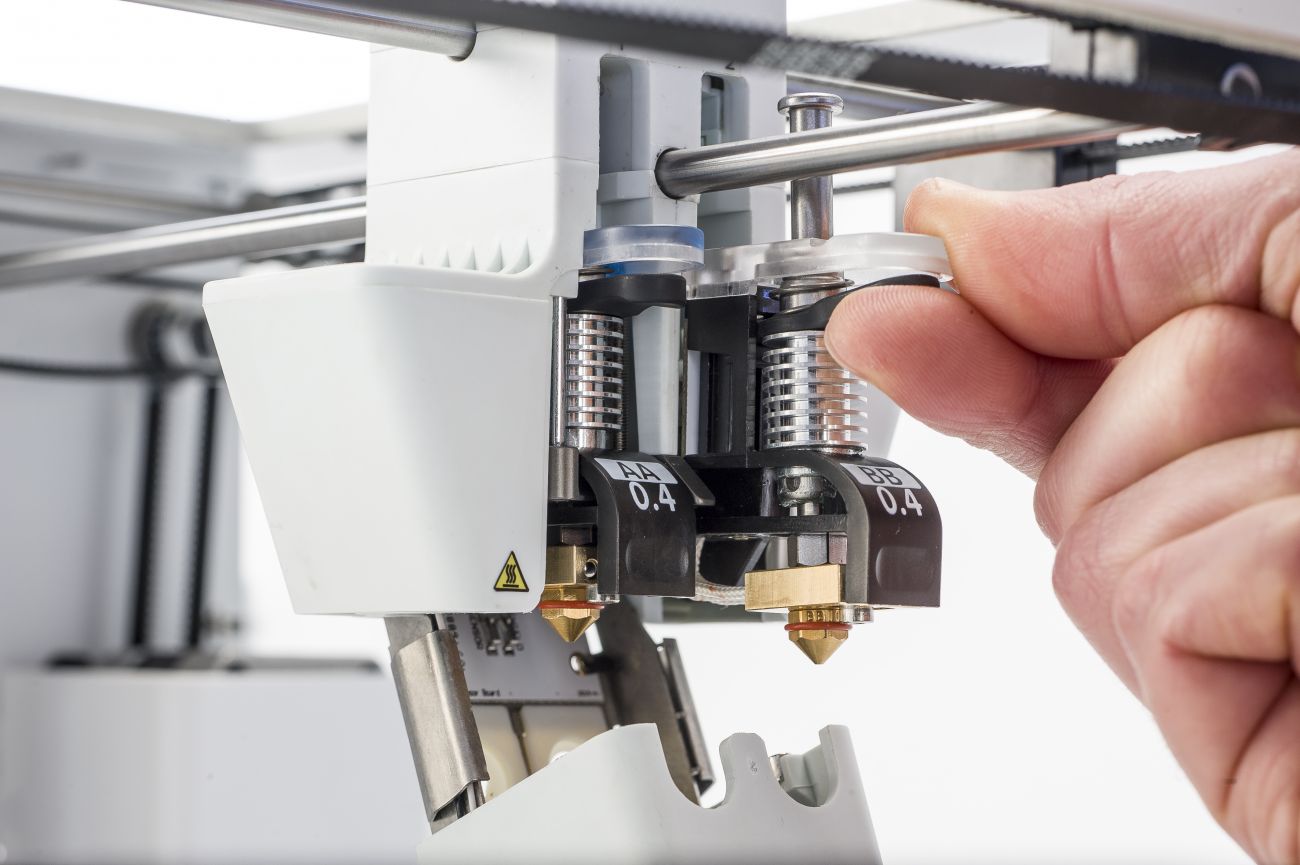
Print cores can be changed easily on the UltiMaker 3 by using the procedure from the menu. This will guide you through the required steps. Besides changing a print core, you also have the option to only load or unload a print core.
You can change the print core for a direct replacement, or a different size or type. The printer will automatically detect the new print core's settings.
Note: To see which print cores are compatible with the Ultimaker 3, check this general compatibility page or the UltiMaker 3 material compatibility overview.
To change a print core, take the following steps:
- In the UltiMaker 3 menu, go to Material/PrintCore → PrintCore [x] → Change.
- Wait for the print core to heat up, retract the material, and cool down again.
- Gently open the print head fan bracket.
- Remove the print core carefully by squeezing the black lever upwards and sliding the print core out of the print head.
- Insert the new print core in the print head until it clicks into place.
Note: Never touch the contact points at the back of the print core with your bare hands, as oils and grease can affect the connection.
Tip: Make sure you keep the print core completely vertical while removing or installing it so it will smoothly slide out of/into the print head. If the print core does not securely click into place, give it a gentle push.
- Close the print head fan bracket.
- Wait for the UltiMaker 3 to load the material into the print core and cool down again.
Note: It is not possible to change the material and print core at the same time. If you want to change both, you must first unload the material, then change the print core, and after that, load the new material.
Note: It is recommended to always use the process in the menu to change or unload print cores. Manually removing a print core while it is active (heating up or cooling down) will lead to errors.


