|
If you have previously saved an UltiMaker Cura project file, or you have received one from a team member, for example, you can easily open it in Cura. You will receive all information about the print file, including the printer and configuration, the 3D model(s), and the selected settings. This allows you to fine-tune the print strategy or make quick iterations.
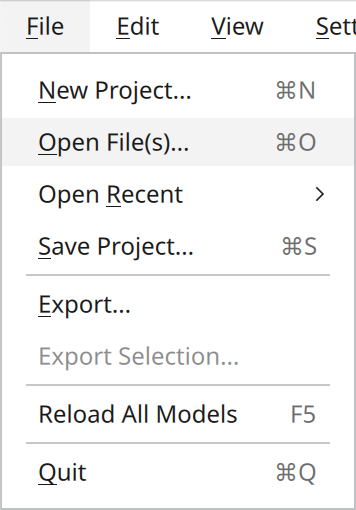
Open a project file in UltiMaker Cura by going to File → Open File(s)... to locate the file on your computer or File → Open Recent and select a recent project from the list.
Tip: Use the keyboard shortcut keys Ctrl+O on Windows or ⌘+O on Mac to quickly open a project file.
If you are signed in to your UltiMaker account and you have UltiMaker printers connected to the Digital Factory, you can also open project files from your Digital Library.
|  |
Open project or import models
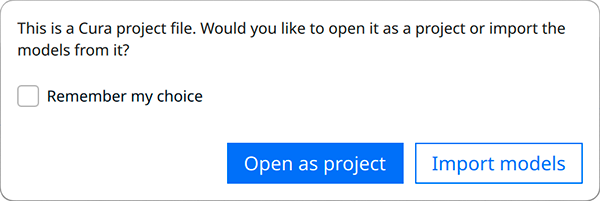
When opening a project file, UltiMaker Cura presents the option to load the complete project file or just the 3D models within the file. When loading the 3D models only, the print settings and adjustments will be ignored. Click Open as project to load the project file completely.
Tip: By default, Cura will always ask you how you would like to open project files. You can check the box for Remember my choice or adjust this setting in the Preferences menu.
Project summary
After you select Open as project, you are shown a summary of the project's contents. You can see information about the printer, the profile settings, and the material(s) selected.
Note: This information is also displayed to review when saving a project file.
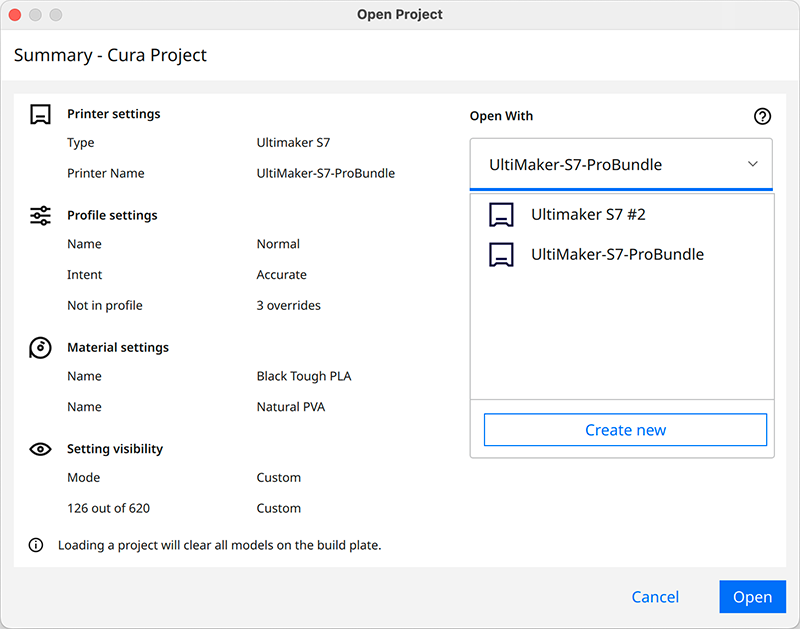
You can open any kind of project file with UltiMaker Cura, even if this was prepared for a printer that you have not added to your printers list. If you do not have a compatible printer added, Cura will automatically add a new machine. If you do have compatible printers in your list, select the one you want to use to open the project. You can also choose Create new if you want to add a new printer and keep your settings saved for your currently active machine.
Note: Opening a project file will always clear all currently loaded models from the build plate.


