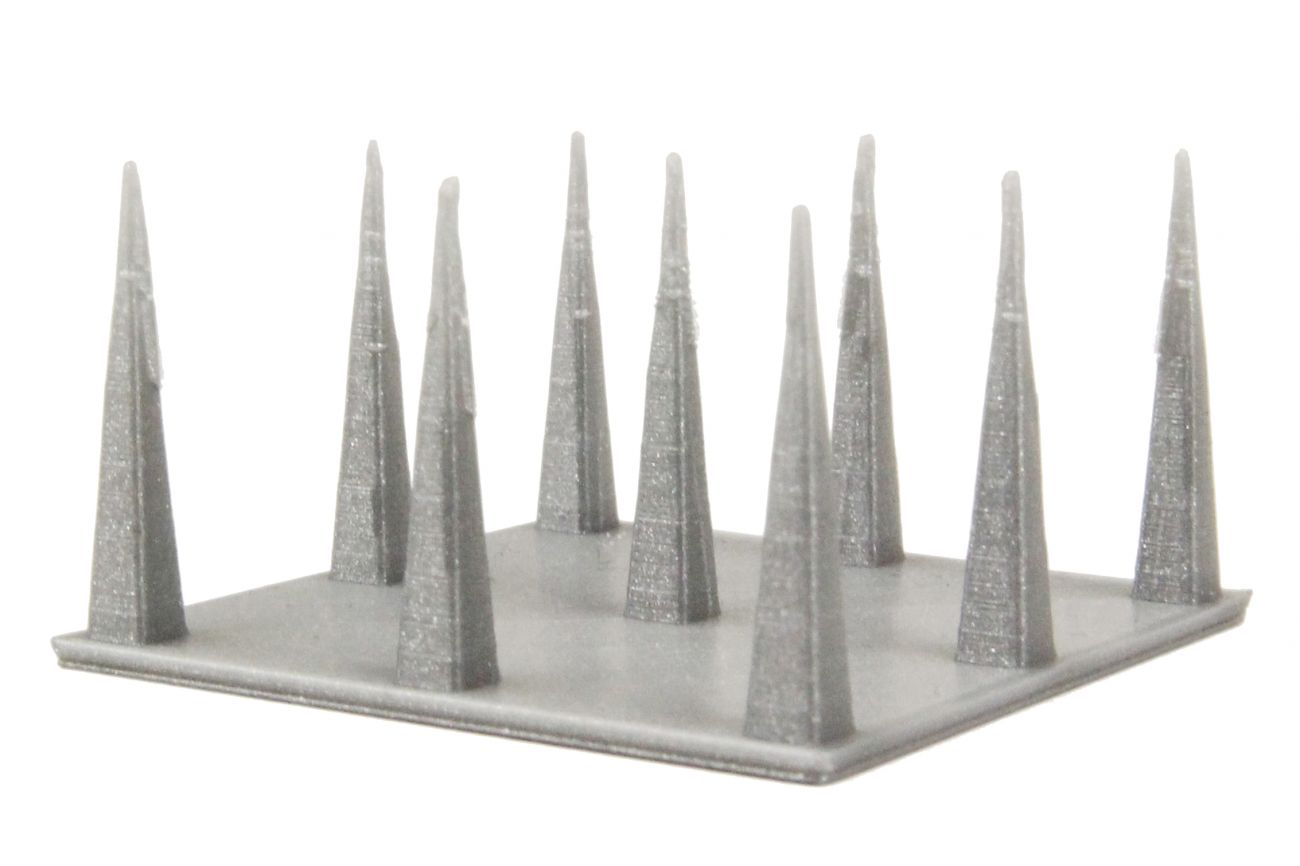
3D prints sometimes show small strands of plastic in places where the print head should not be printing but must only travel from one place to another. These unwanted strands of plastic are called stringing. Stringing can be material dependent, but here we describe some general things you could do when dealing with stringing.
Tip: This article specifically applies to UltiMaker 3D printers, including the 2, 3, and S series. However, most of the advice on this page can also be applied to other printer types.
Material drying
Moisture in the filament can evaporate in the nozzle and push material out of the nozzle opening. Therefore, it is important that the filament is in good condition. The best ways to dry your UltiMaker filament are described in this article:
How to dry UltiMaker materials
Retraction
When the print head performs a travel move between two parts of the print, it should not extrude or ooze any material. To prevent this from happening, the use of retraction is important. This means that the filament is pulled back a little bit by the feeder. This decreases the pressure in the nozzle so that the material does not leak out during the travel moves.
Retraction is a setting in UltiMaker Cura and is enabled by default (for UltiMaker printers). If you are unsure if retraction is enabled, you can check it in the Custom mode. Look for the Retraction setting using the search bar, or open the Travel category.
After slicing, you can check the Layer view. Travel lines with retraction are shown in a light purple / lavender color, while unretracted travel lines are represented in a rich blue.
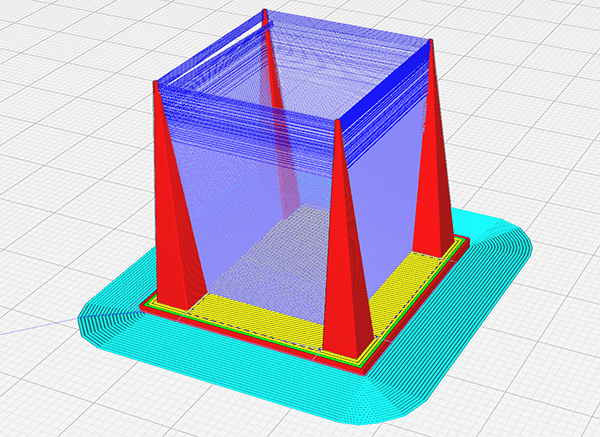
Tip: Even if retraction is enabled, not all travel moves may be retracted! This is due to other settings affecting whether or not to retract. Learn more about the Cura settings in the Travel section in this article.
Temperature
To reduce the amount of stringing, temperature is key. A high temperature means that the material will be more liquid, so that it more easily drips out of the nozzle (even when retracted). By using a lower temperature, the material is less liquid and thus less likely to string.
There is no exact temperature to recommend, as this strongly depends on the material type (or even the color) as well as the printer configuration and used settings. In case of stringing, try lowering the print temperature with steps of 5 °C for each print. The key is finding the right balance between resolving stringing and preventing under-extrusion.
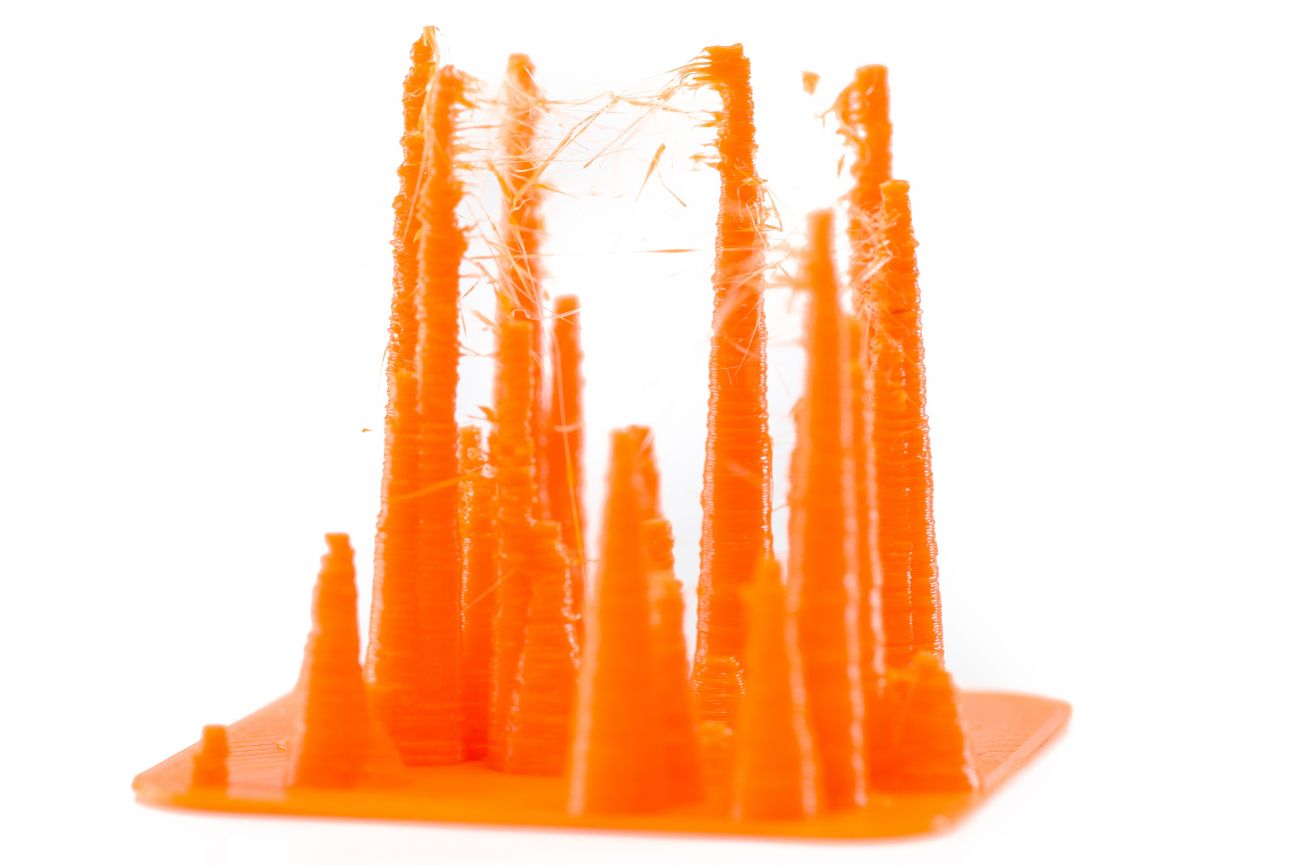
The images below show the effect of a too high printing temperature on stringing; the pins look 'fuzzy':
Speed
The two main factors affecting extrusion are temperature and print speed; these must be in balance. If the temperature was lowered to try to prevent stringing, ensure that you don't print too fast as this will lead to under-extrusion.
Furthermore, it could help to increase the travel speed. This is the speed at which the print head travels only when it is not extruding material. Usually, this is much faster than while printing. With higher travel speeds, the material has less time to drip from the nozzle. A travel speed of 150 mm/s should be fine for most prints.
Note: Please note the hardware limitations of your printer model. At too high travel speeds, the print head is at risk of skipping steps and losing accurate positioning. For example, UltiMaker S series cannot achieve travel speeds > 150 mm/s; Cura actively blocks this.
Advanced Cura settings
In the sections above, several Cura settings were highlighted that affect stringing: Enable Retraction, Printing temperature, Print speed, and Travel speed. In addition to these, there are also some more advanced UltiMaker Cura settings that can minimize stringing for 3D models or materials that are susceptible to this, such as thin-walled models using PETG.
- Avoid Printed Parts. If this setting is enabled, the print head will travel around other objects or parts of the object instead of going straight through them. The benefit is that the nozzle does not cross through walls often, which reduces the chance of strings attaching to already printed parts. However, the downside is that this can generate longer travel moves, meaning that there is more time for material to ooze out of the nozzle during traveling.
- Max Comb Distance With No Retract. Combing enables making travel moves without retraction when staying within the mesh and not crossing walls. The max distance setting can be decreased to limit oozing. Even though this will be within the model, this can cause uneven extrusion. However, too low values can lead to too many retractions which could damage the filament.
- Travel Jerk / Acceleration. When altering the settings for travel jerk and acceleration, the print head can pull away from the object at a quicker rate, potentially decreasing the chance that some material from the nozzle sticks to the walls of the object which causes stringing. Note that changing these settings requires some knowledge and experience; the wrong settings can cause other print quality issues or vibrations of the printer.
- Retraction Distance / Speed / Minimum Travel. All the underlying settings for retraction can be changed and optimized to determine how far, how fast, and how often the material should be retracted. Again, balance is important. While always retracting, as well as further and faster, will reduce stringing, this will also cause more wear on the filament that passes through the feeder. This may cause the material to flatten, leading to under-extrusion or completely failed prints.
Tip: Please see the support article for all UltiMaker Cura Travel settings for more information on how these settings affect print quality.
Note: For the UltiMaker 2 series (except the UltiMaker 2+ Connect) all retraction settings are set up in the printer's firmware instead of in Ultimaker Cura. In Cura, you can only enable or disable retractions.
With the right material and print settings you can minimize the amount of stringing: