This error can appear on UltiMaker S Series printers using the Air Manager (S5 and S6 with add-on, or the S7 and S8 with integrated Air Manager).
Introduction
If this error occurs, there is a problem establishing or maintaining communication between the Air Manager and the printer's electronics.
This error can appear for the following reasons:
- The Air Manager has been removed or disconnected from the printer, but the removal was not confirmed on the display.
- The cable between the printer and the Air Manager is not secured properly.
- The cable between the printer and the Air Manager is damaged or broken.
- There is a problem with the electronics of the Air Manager.
- When the printer is also used with a Material Station: The cable between the printer and the Material Station is not secured properly or is defective.
Often, this error can be resolved by checking and reseating the connections. Try the tips below.
Update the firmware
Note: Since S series firmware 8.2.1, the ER80 error message has been demoted to a warning. Instead of aborting the print process, the print job will be allowed to finish.
Previously, the ER80 would abort all processes, including the print job, if the error appeared during printing. This was changed in version 8.2.1. If ER80 still aborts your current print, ensure you update the printer's firmware to the most recent version.
If the ER80 appears during printing, a warning will be shown on the screen. This will not affect the current print job, but the printer requires a reboot after the print has completed. If you see this error during the print process, check if the fan is still spinning. If so, it is safe to let the print complete. In the rare case that the fan is no longer spinning, it is recommended to abort the print to prevent damage to the machine.
In case the warning shows as a single occurrence, this is likely a temporary communication loss, and there is no cause for concern. Reboot the printer after printing. If the error does not reappear, no additional troubleshooting steps are required. If the error persists after rebooting the printer, or appears during printing more frequently, check the steps below to find and resolve the root cause.
Check the cables
First, always ensure that the cable is connected securely to the bottom of the Air Manager. Firmly insert the cable, and place the stress relief clip around it. Fully slide it upwards for the most secure connection.
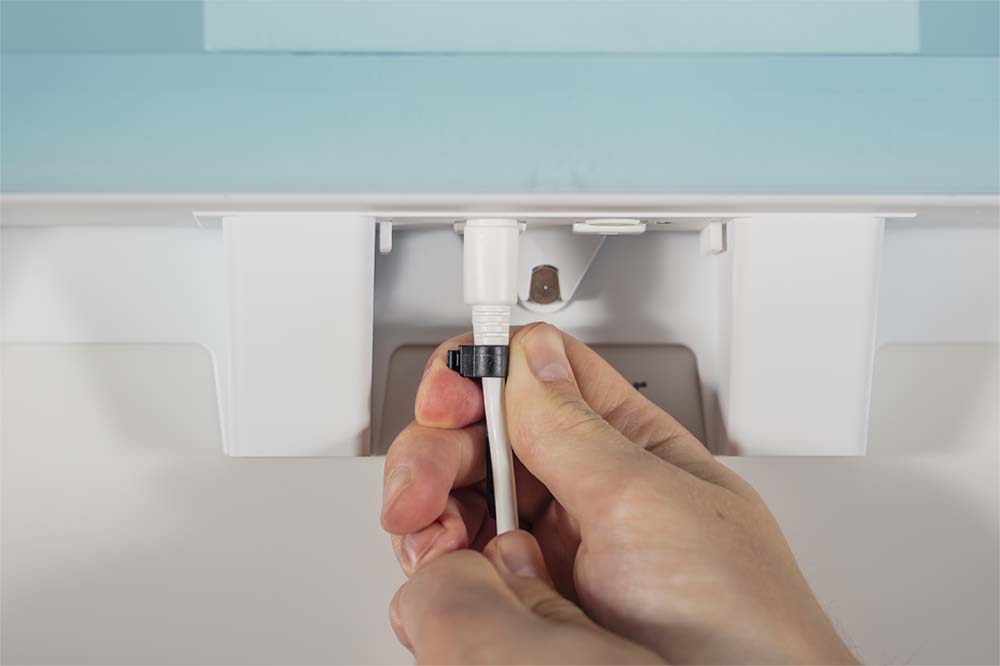
Tip: The strain relief will prevent the cable from getting pulled out of the Air Manager by accident.
|
Printer with Air Manager (no Material Station)
If the Air Manager is connected directly to the S Series printer, check that the UMB cable going into the UMB OUT port of the printer is securely connected. The Air Manager must not be plugged into the NFC port at the back of the printer.
|
S Series Pro Bundle (with Material Station)
If you have a Pro Bundle, the Air Manager connects to the UMB OUT port of the Material Station. Check that this cable is securely connected. Also make sure that the Material Station cable is properly connected to the printer.
|
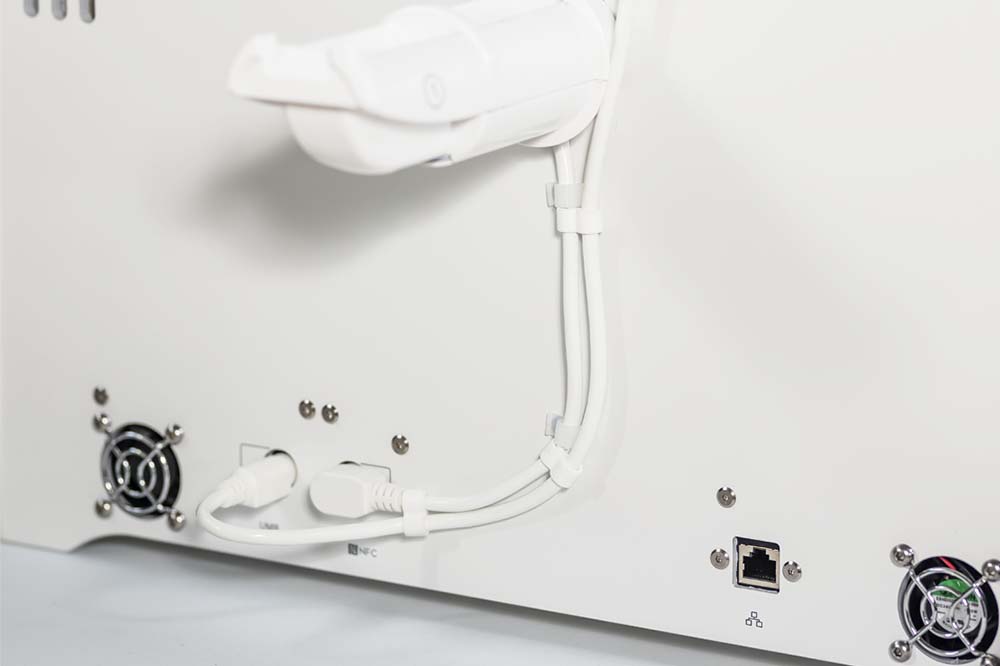 | 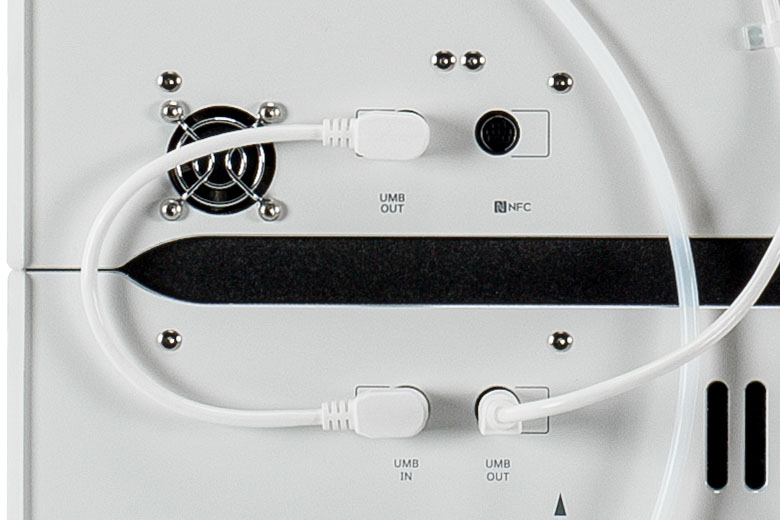 |
| Connections for an S Series printer with Air Manager and using the spool holder. | Connections for a Pro Bundle setup. |
Note: If the printer is used in combination with a Material Station (Pro Bundle), the Air Manager cable must not be secured to the Bowden tubes that run between the decouplers and the feeders of the printer. These tubes move during operation of the Pro Bundle. This can cause the Air Manager cable to come loose over time and lead to an unexpected ER80 error message. Additionally, the restriction of the Bowden tubes' movements could cause errors during loading or unloading of material.
Tips for Pro Bundles
If you have an UltiMaker S Series Pro Bundle, the loss of communication with the Air Manager can also be caused by a problem with the Material Station. Expand the sections below to learn more.
Tip: If the accordions do not expand when you click on them, please refresh the page.
Check the Material Station connection
As the Air Manager is connected via the Material Station, the communication with the Air Manager will also be lost if there is a connection problem between the printer and the Material Station. To determine if the Material Station is still connected and recognized, select the Materials menu on the display of the printer. If this overview shows the 6 material bays, then the Material Station is connected correctly.
Tip: The Materials menu will also appear when you open the door of the Material Station.
If this menu only shows a two-material configuration, the Material Station is not recognized by the S Series printer. The ER80 is likely caused by the Material Station rather than the Air Manager.
Connect the Air Manager directly to the printer
Try connecting the Air Manager directly to the S Series printer to check if the communication problem persists.
- Turn off the printer using the power switch at the back.
- Remove the power extension cable from the printer's power entry.
- Remove the power cable from the Material Station and connect it to the printer.
- Disconnect the Material Station from the UMB OUT port on the printer.
- Connect the Air Manager cable to the UMB OUT port instead.
- Turn on the printer using the power switch at the back.
Check if the ER80 message shows up again or not. Try heating one of the print cores to > 50 °C and wait for the fan to start spinning. Wait at least 3 minutes. If the ER80 does not reappear when the Air Manager is connected directly to the printer, the problem may be caused by the Material Station (or its connection to the printer's electronics).
Need further support?
If the problem still persists after checking the connections, there is likely a hardware problem with the Air Manager or the cable. If you have a Pro Bundle and followed the troubleshooting steps above, there could also be a problem with the Material Station.
Please contact support for further assistance. It is recommended to include the error number (ER80) and the printer's log files, and please also describe when and how often the error appears.


