Available on: All free and paid plans
Note: The amount of printers you can connect is dependent on your subscription plan.
This article explains how to use the UltiMaker Digital Factory to monitor printer status, manage configurations, and perform updates from your web browser.
In this article, you will learn:
- How to monitor all your connected printers from the dashboard.
- How to find detailed information about a specific printer.
- How to change a printer's name and identify it remotely.
- How to manage your printer's firmware.
Viewing the Printer Dashboard
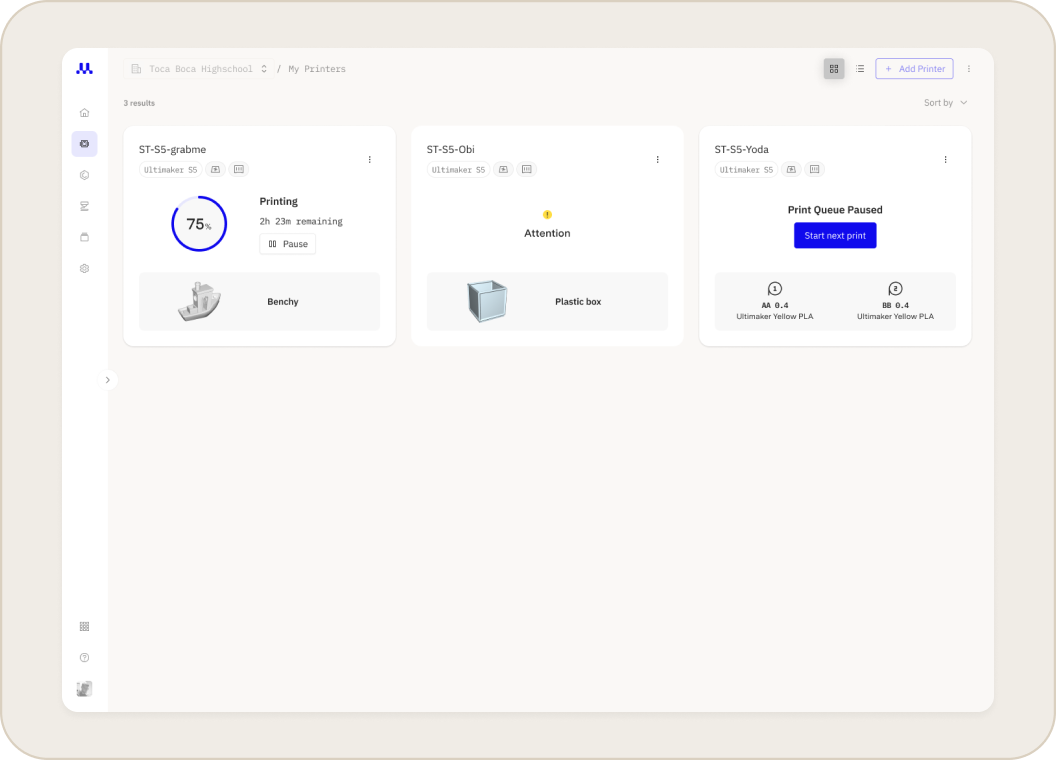
The Printer Dashboard is your central hub for monitoring all connected Ultimaker printers. At a glance, you can see each printer's name, status, and any active print jobs. If a printer requires attention, an error or warning message will be displayed.
You can switch between a list or tile view and sort your printers by name or status to quickly find the information you need.
How to Manage a Specific Printer
Note: Actions and information available will depend on printer type
Follow these steps to view and manage the details for a specific printer.
- Navigate to the Printer Dashboard
- Log in to your UltiMaker Digital Factory account.
- Select Printers from the main menu to open the dashboard.
- Select a Printer
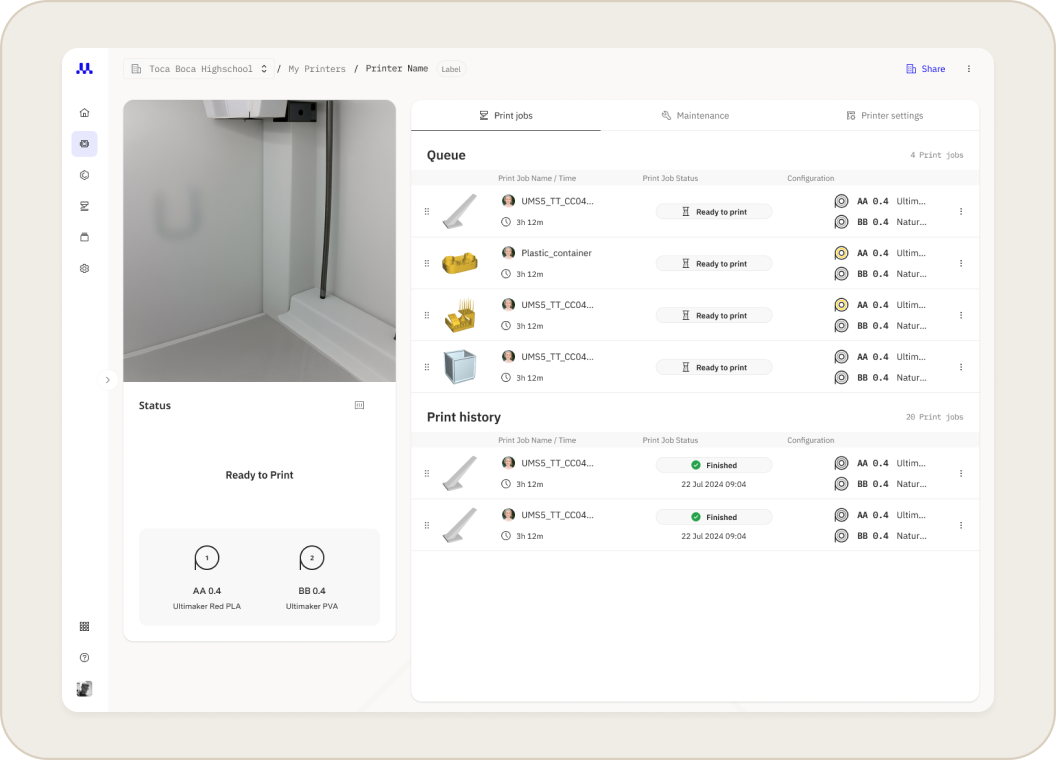
- From the dashboard, click on the printer you wish to manage. This will take you to the printer detail page.
- Check Configuration Details
- On the printer detail page, you can see the materials and print cores that are currently loaded.
- If you are using a S series with a connected Material Station, all loaded materials will be shown with an indicator for the remaining amount.
- Additional Actions
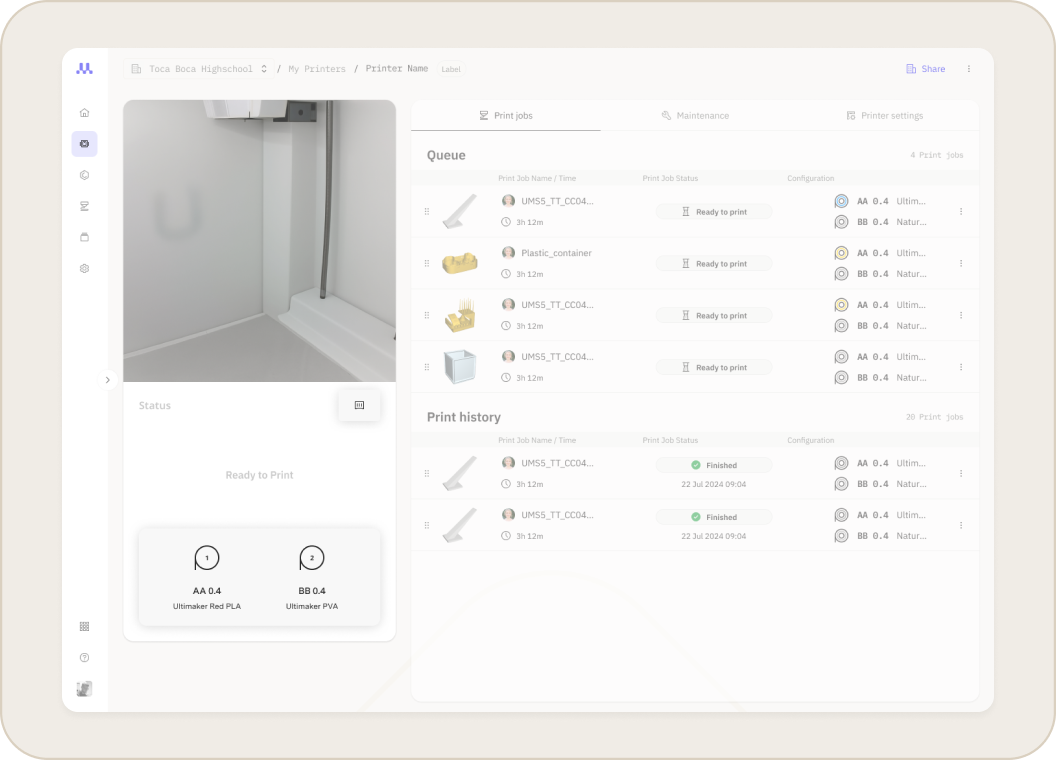
- Click the context menu (...) on the printer detail page to view additional changes
- After selecting Rename , enter the new name for your printer and save the change. This name will appear in the Digital Factory, on the printer's display, and in reports.
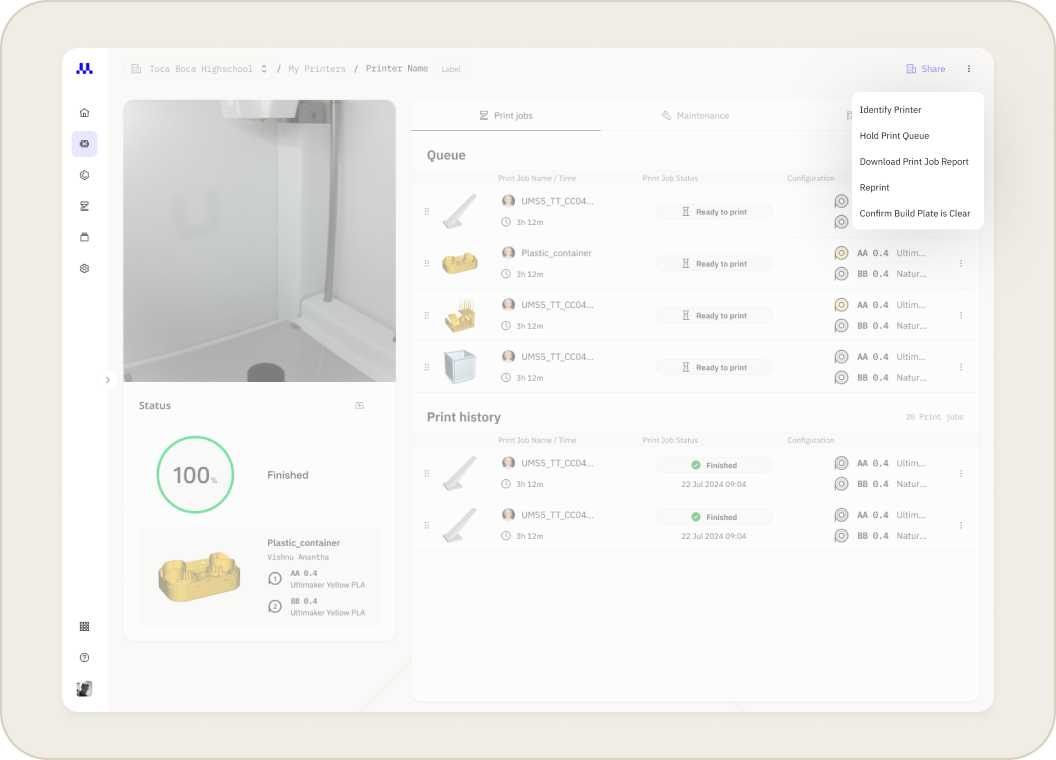
Tip: If you are not sure which physical printer you are editing, select Identify from the context menu. This will cause the printer's lights to blink for a few seconds.
- Manage Firmware
- From the printer detail page, you can choose which firmware channel the printer subscribes to, either Latest or Stable.
- When a new firmware version is available, an Update Firmware button will appear. Click this button to have the printer automatically download and install the update.
Related Articles
- Article: Connecting Your UltiMaker Printer to the Digital Factory
- Article: Printer Maintenance
- Article: Printer Firmware Updates and Channels


