Available on: All plans
Note: This feature is not available for certain printer types including Ultimaker 3 and 2+ Connect.
This article explains how to remotely confirm that a print has been removed from a printer's build plate. This is useful when a print has been physically removed, but the operator forgot to confirm it on the printer's display, which blocks the next print job in the queue.
In this article, you will learn:
- When to confirm print removal remotely.
- Who has permission to perform this action.
- How to confirm the build plate is clear via Digital Factory.
- Important safety considerations.
When to Confirm Print Removal
After a print job is completed or aborted, the printer requires confirmation that the build plate is clear before it can begin the next job. If this confirmation is not done on the printer's display, the print queue will be blocked. This feature allows an authorized user to provide that confirmation remotely through the Digital Factory, keeping the workflow moving.
Who Can Confirm Print Removal?
Permissions depend on the user role. Guests and students cannot confirm removal.
How to Confirm Print Removal Remotely
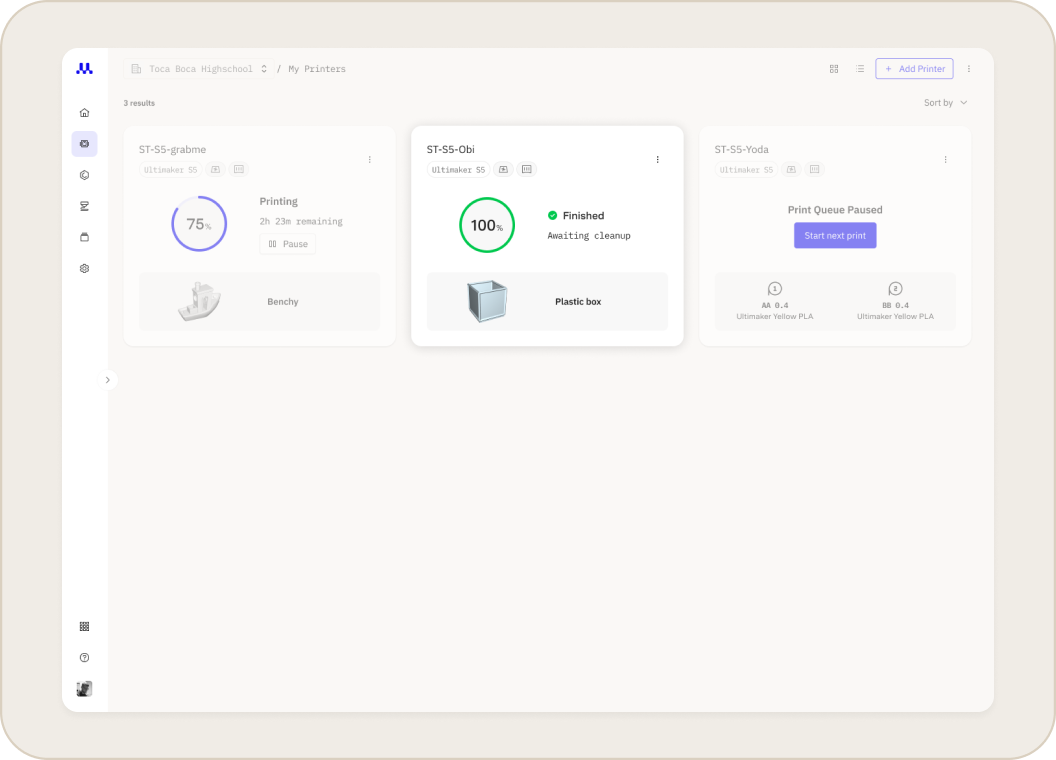
Follow these steps to confirm a build plate is clear. This option is only visible when the printer is in the Awaiting cleanup state.
- Navigate to Printers
- Log in to your UltiMaker Digital Factory account.
- From the main menu, go to the Printers overview page.
- Select the printer that shows the Awaiting cleanup status.
- Open Printer Options
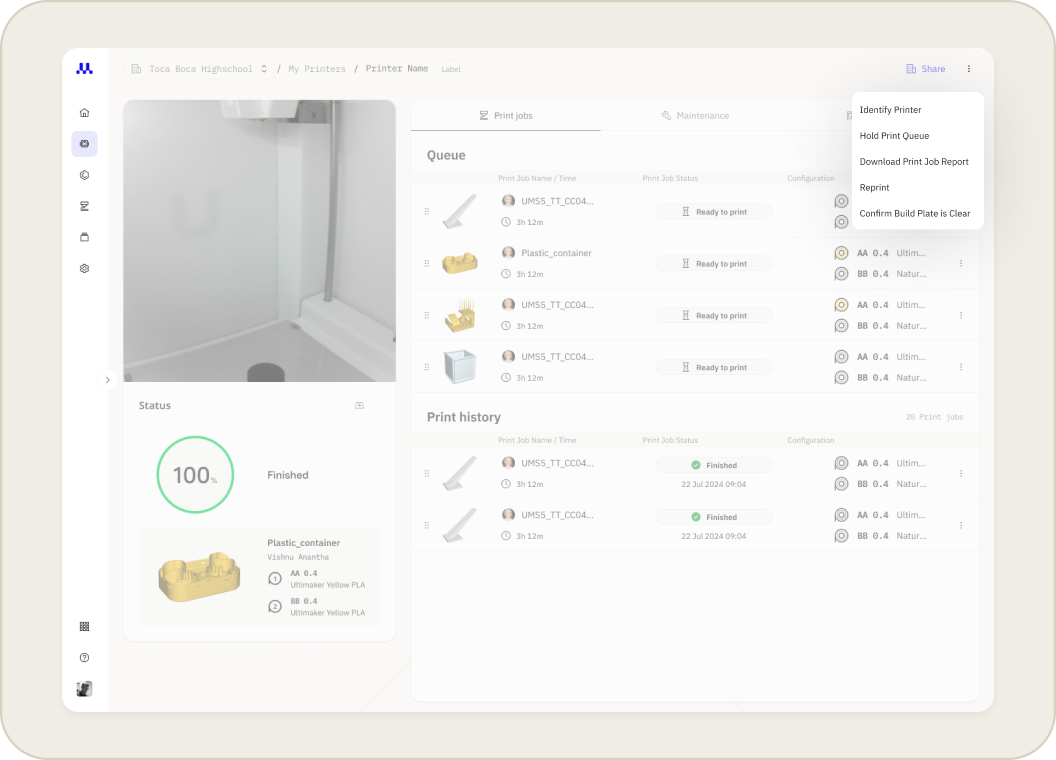
- Click the three dots menu (...) in the top-right corner of the printer's detail panel.
- Confirm the Build Plate is Clear
- From the dropdown menu, select Confirm Build Plate is Clear.
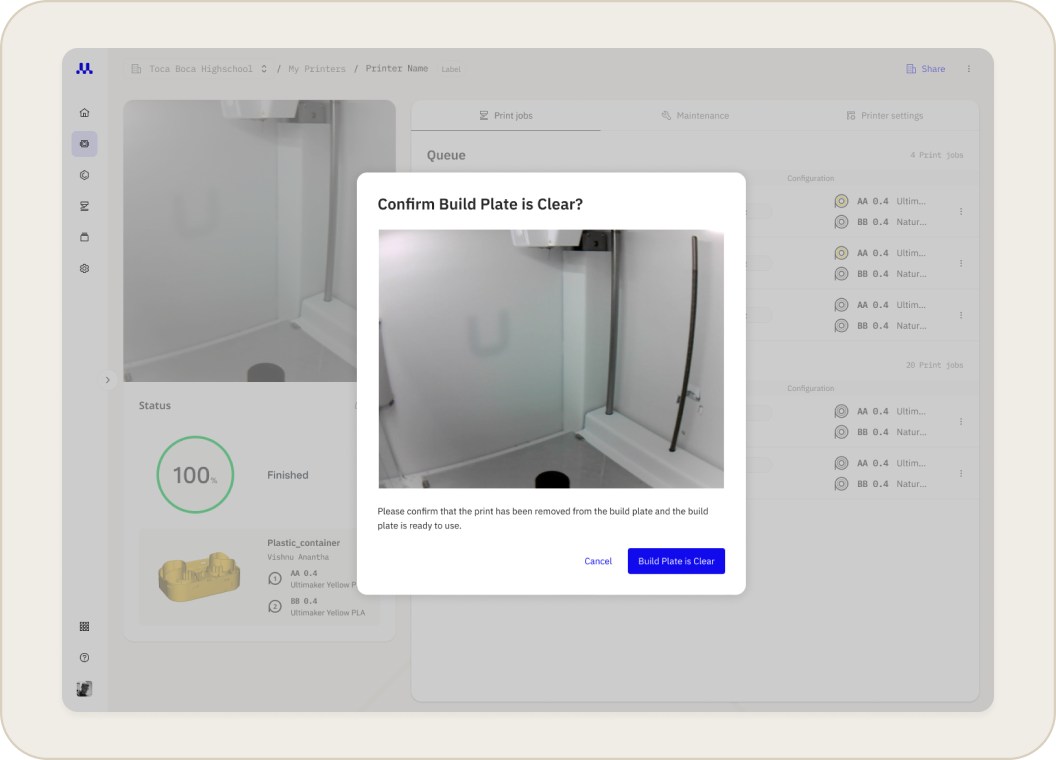
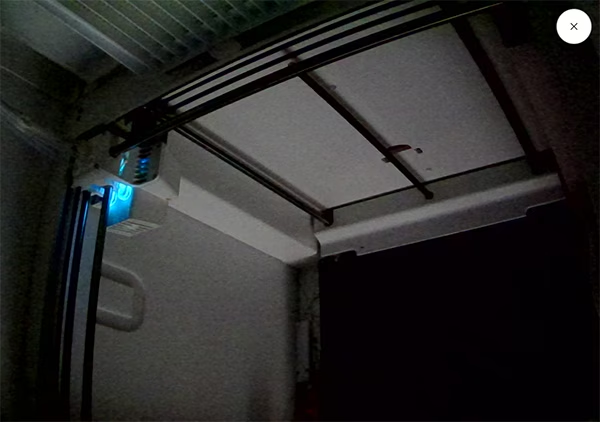
- A pop-up window will appear showing the printer's live camera view. Use this to visually verify that the previous print has been removed and the build plate is correctly in place.
- If the printer is ready, click the Build Plate is Clear button.
Once confirmed, the printer is ready to accept the next print job from the queue.
Important Considerations
- Camera View: On certain printers including UltiMaker S3 and S5, the camera may not show the entire build plate when it is in the lowest position. Placing a small mirror inside the printer's left panel can help reflect the full build plate surface.
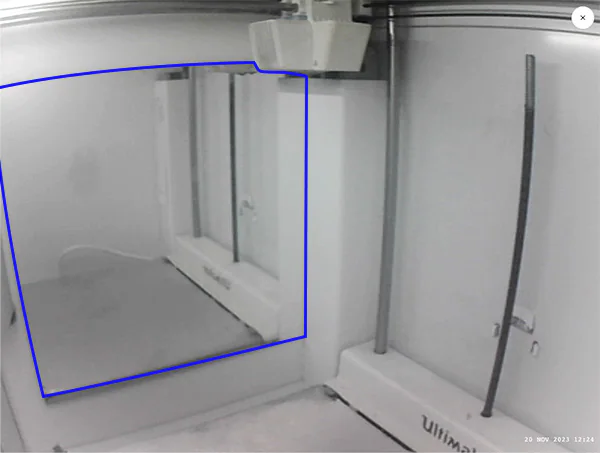
- Lighting: If the printer is in a dark environment, the camera may not provide a clear view. If you cannot see the build plate clearly, do not confirm removal remotely. Go to the printer to check it in person.
Caution: Never confirm the build plate is clear unless you are absolutely certain the printer is ready for a new job. Starting a print when the previous part is still on the build plate or when the plate is not installed can cause serious damage to your printer.
Related Articles
- Article: Connecting an UltiMaker S-series Printer
- Article: Managing the Print Queue in Digital Factory
- Article: User Roles and Permissions


