By backing up your UltiMaker Cura configuration to the cloud, you make sure that none of your printer configurations, print settings, and plugins ever get lost. To make use of this feature, you will need an UltiMaker Account.
Tip: You can create an UltiMaker Account to benefit from backups and other features, even if you do not own any UltiMaker 3D printers.
The backups are securely stored in UltiMaker's cloud. You can restore a backup in any installation of Cura as long as you're signed in with your UltiMaker Account. For example, you can create a backup on your desktop and restore it on your laptop, as a way to synchronize settings between Cura installations.
This is how it works:
| Cura Backups panel |
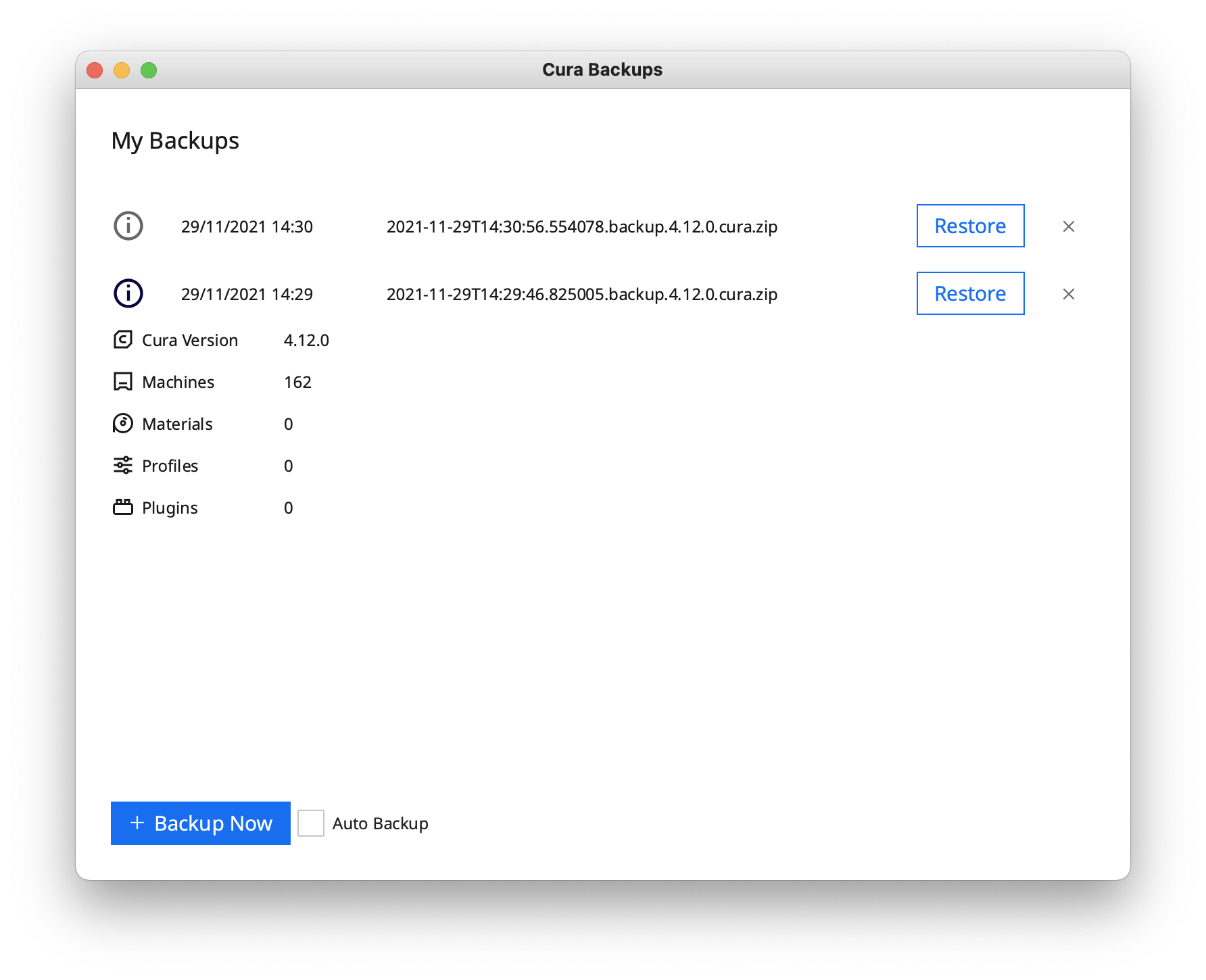
In the top bar of UltiMaker Cura, navigate to Extensions → Cura Backups → Manage backups. This will open the Cura Backups panel. If you are not yet signed in to your account, you can do so from this panel (or create one, if you haven't already). Once you are signed in, you see an overview of your Cura backups.
|
|---|
| Create a backup |
If this is the first time using this feature, the overview will be empty. You can click the blue + Backup Now button to create a new backup. This may take a moment, but the new backup will then immediately be visible in the overview.
You can also enable Auto Backup, which will automatically store a backup each day when you start UltiMaker Cura.
|
|---|
| Backup information |
In the Cura Backups overview, click the information icon to see the details of your backup. This will show you the Cura version used to make the backup, and the number of machines, materials, profiles, and plugins added.
|
|---|
| Restore a backup |
To go back to a previously backed-up configuration, simply click the Restore button. Restoring will wipe all your current settings and replace them with the ones in the backup.
You will need to restart Cura before the backup can be restored. Click the Yes button in the popup window if you want to quit Cura straight away. Restart the application to load your backup.
|
|---|
Note: The video above shows an older version of Cura, but the backup process is the same in the latest version.


