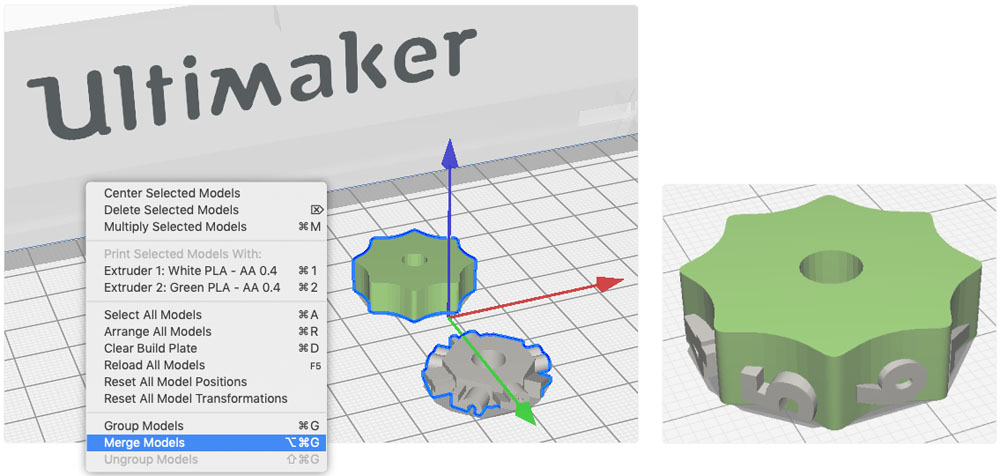
Models loaded on the build plate can be grouped or merged to greatly simplify modifications when working with multiple models simultaneously. The group and merge options can be found in the quick menu, easily accessed by right-clicking anywhere on the build plate in UltiMaker Cura.
Grouping models
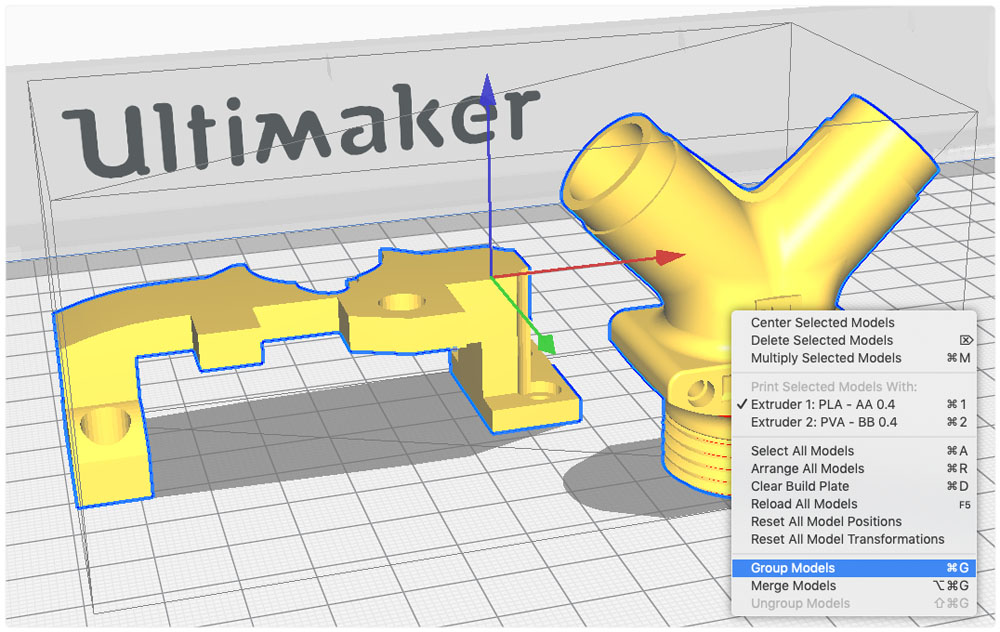
Grouping models is useful when you wish to move, scale, rotate, and mirror the models simultaneously to reduce the chance of user error and the number of actions necessary for the desired result.
- Select two or more models on the build plate holding shift and left-clicking the model. Selected models are indicated by a blue outline.
- Right-click one of the selected models, and select ‘Group models’. The shortcut for this command is ‘ctrl / cmd + G’. Grouped models have a grey bounding box.
- Ungrouping can be done by right-clicking the model and selecting ‘Ungroup models’, or hitting ‘ctrl / cmd + shift + G’.
Merging models
Merging automatically aligns the models. This feature is useful when working with dual material or dual color models.
Note: This only works if the models were correctly aligned during the 3D modeling process, since UltiMaker Cura uses the model’s origin information to successfully align them.
- Select two or more models on the build plate holding shift and left-clicking the model. Selected models are indicated by a blue outline.
- ‘Right click’ one of the selected models, and select ‘Merge models’. The shortcut for this command is ‘ctrl / cmd + alt / option + G’. Merged models have a grey bounding box. Merged models are aligned to both models’ origin points.
- To undo the merging, right-click the model and select ‘Ungroup models’, or hitting ‘ctrl / cmd + shift + G’.