To ensure that your UltiMaker 2+ Connect is equipped with the latest features, update the firmware to the most recent version. This can be done over the network if your printer is connected, or via USB.
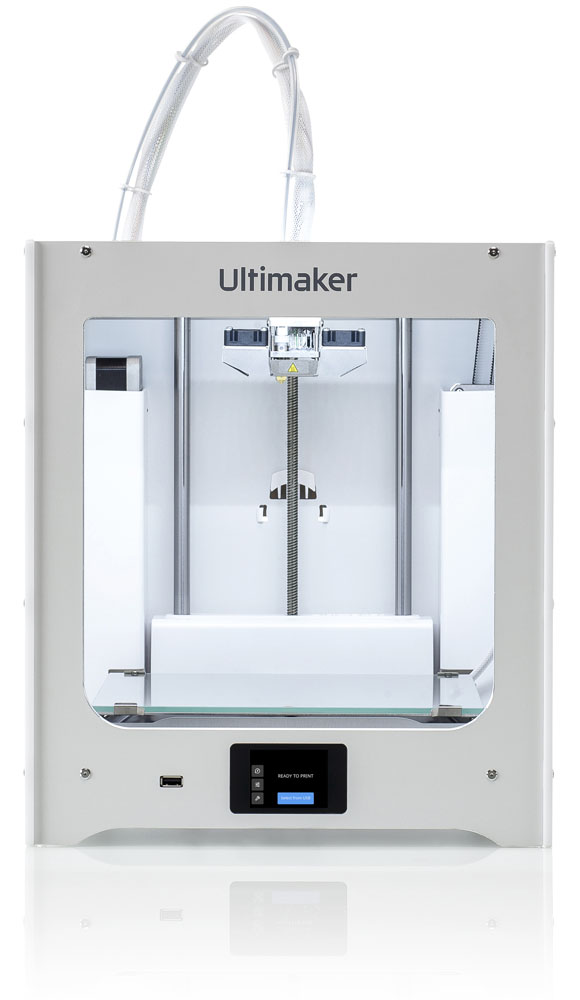 |
UltiMaker 2+ Connect
Version 1.5.3
Released June, 2023
For the latest release notes, click here
Tip: Some browsers may actively block the download of a .img file. If you experience difficulties, please try a different browser.
|
Caution: When updating the firmware, do not power off the printer until the firmware installation is finished.
Update your UltiMaker 2+ Connect via USB
If the printer is not connected to the network, the firmware can be updated via USB.
- Download the latest firmware file via the link above.
- Place the file in the root directory of a USB stick.
Note: Do not make any changes to the file or filename.
- Insert the USB stick into the USB port at the front of your printer.
- Go to Settings → Update firmware, and select the new firmware in the update menu.
Wait for the printer to finish updating the firmware. The printer will restart.
Update your UltiMaker 2+ Connect via the network
Connect the printer to the network via Wi-Fi or Ethernet in the Settings menu
- Go to Settings → Update firmware.
- Select the latest firmware version to install it.
Wait for the printer to finish updating the firmware. The printer will restart.
First installation of the firmware
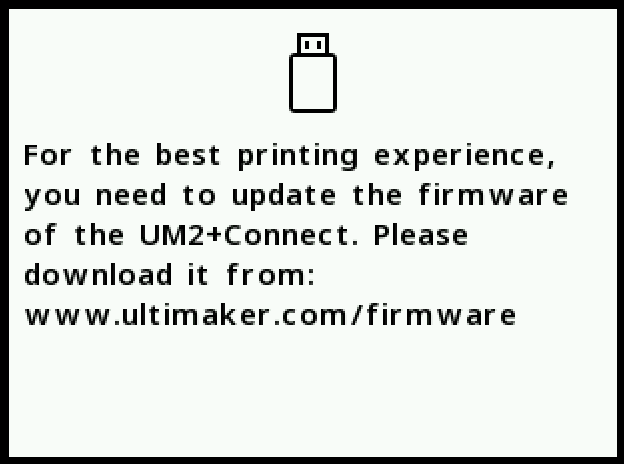
Note: When booting up your UltiMaker 2+ Connect for the first time, it is possible that you will see the screen shown below. This only applies to printers manufactured in 2020. If this is the case, you must first install the latest firmware via USB before you can continue to use the printer.
|
If you see this screen on your UltiMaker 2+ Connect, follow these steps:
- Download the latest firmware file via the link above.
- Place the file in the root directory of a USB stick.
Note: Do not make any changes to the file or filename.
- Ensure the UltiMaker 2+ Connect is powered on and displaying the screen shown above.
- Insert the USB stick into the USB port at the front of the printer to automatically start the firmware update.
|  |
Wait for the printer to finish updating the firmware. The printer will restart.
After installing the firmware according to this procedure, you are ready to complete the set-up for first use. Any future firmware updates can be performed via network or USB as described above.


