Product notification
This product has been discontinued, and its end-of-service date has passed. While it is no longer supported, the information on this page is still available for your reference.
|
This article describes how to update the firmware on your UltiMaker 3 or UltiMaker 3 Extended. However, please note that no new versions have been released for quite some time. As the UltiMaker 3 series is now fully discontinued and no longer supported, no additional firmware versions will be released.
Tip: For the release notes of all the latest versions, please check this page: UltiMaker 3 - Firmware release notes
Update via the network
If your UltiMaker 3 has an active network connection, via Wi-Fi or Ethernet, the printer can download the latest firmware version over the network. You will be automatically prompted when a new version becomes available. Alternatively, go to SYSTEM → Maintenance → Update firmware to install the new firmware.
Caution: Never power off the printer while the firmware update is in progress.
Update via USB
 |
Download 5.3.0
Release date: October 3, 2021
Tip: The UltiMaker 3 and the UltiMaker 3 Extended use the same firmware file. You can download the above file and use it for both printer types.
- Download the firmware file (.swu) above.
- Place the file in the root directory of a USB stick.
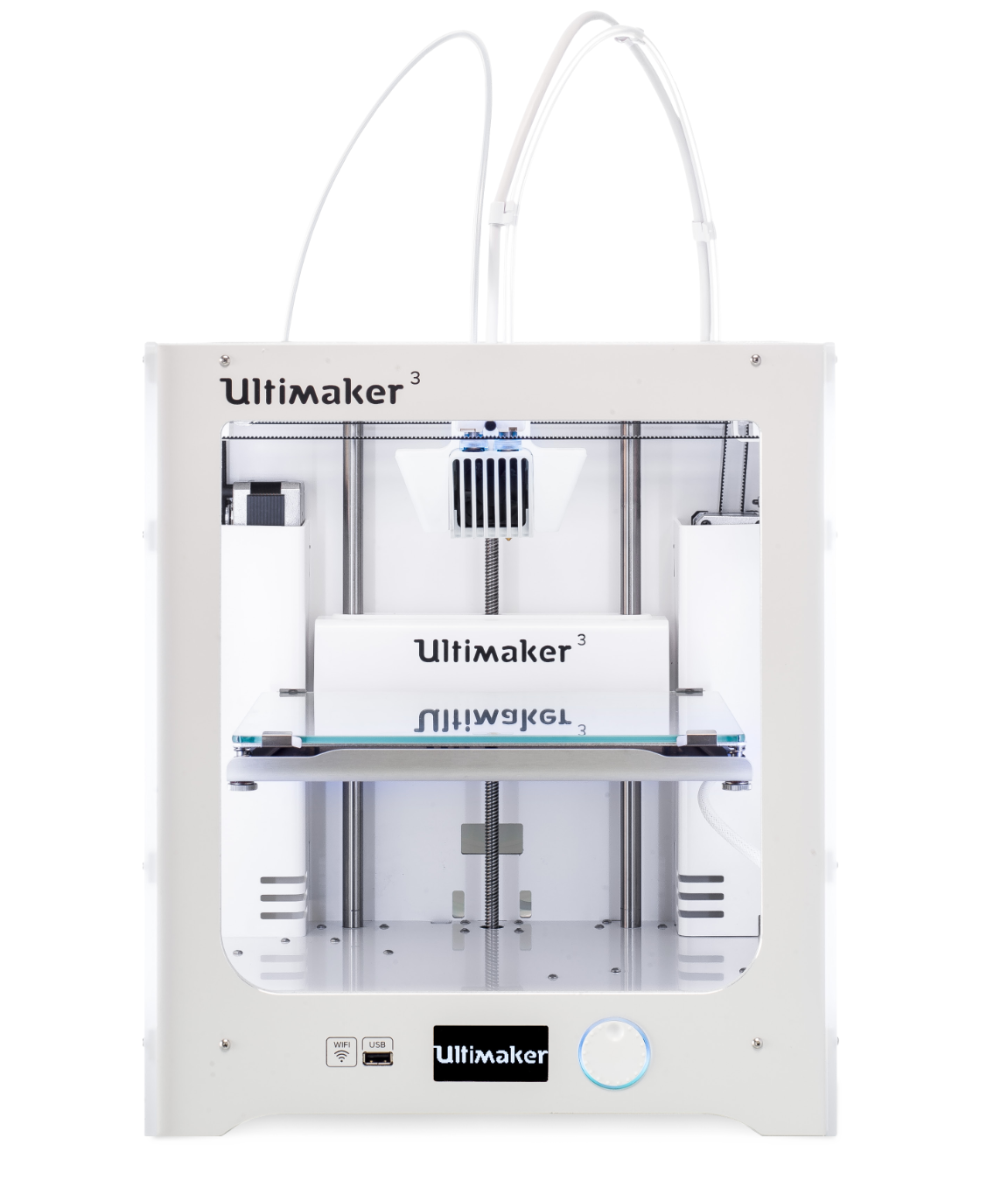
- Insert the USB stick into the USB port at the front of your printer.
- Go to SYSTEM → Maintenance → Update firmware, and select the new firmware in the update menu.
Caution: Never power off the printer while the firmware update is in progress.
|
Updating from older firmware (4.3.3 and older)
If your UltiMaker 3 is still running much older firmware (4.3.3 and earlier), and you want to install the latest version, you must first install a stepping stone build (firmware 4.3.97). This is because the firmware has changed to a different file format. Follow the instructions below:
- Download the 2 files for firmware 4.3.97:
File 1 (.tar.xz) and File 2 (.tar.xz.sig) - Place both files in the root directory of a USB stick.
- Insert the USB stick into the USB port at the front of your printer.
- Go to SYSTEM → Maintenance → Update firmware and select 4.3.97 in the update menu.
- Wait for the UltiMaker 3 to finish updating the firmware and reboot.
The intermediate stepping stone firmware is now installed. You may now upgrade to the latest version via the network or via USB as described above.


