Product notification
This product has been discontinued, and its end-of-service date has passed. While it is no longer supported, the information on this page remains available for your reference.
|
The firmware of the Ultimaker 2+ and Ultimaker 2 Extended+ can be updated via UltiMaker Cura. Periodically, a new version of UltiMaker Cura is released. Find the latest version on ultimaker.com.
Note: The firmware for the Ultimaker 2+ has not changed for a long time, and since the product is discontinued, the firmware is no longer in development. While we still recommend always using the latest version of UltiMaker Cura for the best print results, new Cura versions no longer contain any updates to the firmware for the Ultimaker 2+.
In order to install the latest firmware on your printer, follow the steps described below.
Connect to a computer
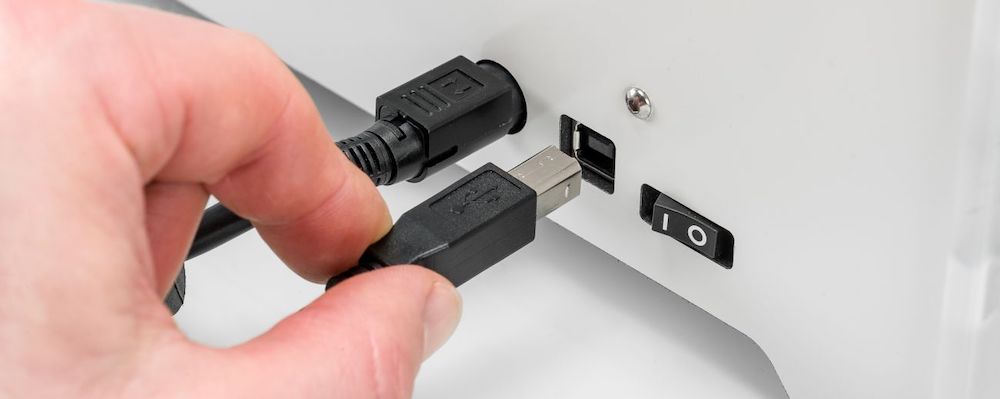
Ensure that the Ultimaker 2+ is turned on. Use the supplied USB cable to connect your Ultimaker 2+ to a computer or laptop that has UltiMaker Cura installed. This will allow Cura to communicate with the printer.
Install firmware
Tip: Ensure that the correct machine (Ultimaker 2+ or Ultimaker 2 Extended+) is selected in the Printers panel. If you have accidentally selected the non '+' version, your feeder will turn the wrong way after the update. If you have an Ultimaker 2 with the Extrusion Upgrade Kit, your printer is now an Ultimaker 2+.
In the Printers panel, select Manage printers. From this menu, you can update the firmware. This menu offers two options:
| Automatically upgrade firmware | Selecting this option will install the latest version of the default UltiMaker firmware for the Ultimaker 2+ or Ultimaker 2 Extended+. |
|---|
| Upload custom firmware | It is possible to install custom firmware for your Ultimaker 2+ that you compiled yourself or found online. Installing custom firmware is always at your own risk. |
|---|
Wait for the firmware installation to complete. Do not disconnect the USB cable or power off the printer during the installation process.


